Connect an AI assistant
When you finish, Claude Desktop can search your library and build reels from it. Claude Desktop is the assistant ShotWork connects for you, from one window: File › Connect an AI Assistant….
Before you start
- A license. The assistant is part of the paid license: Connect an AI Assistant… offers to enter one first, and an assistant connected to a copy on the free tier is told so in every answer it gets. See The free tier and your license.
- Claude Desktop installed and opened at least once. ShotWork recognizes it by the settings folder it creates the first time it runs.
- The shot selects you want it to see, listed in the Library window. ShotWork adds a shot selects file there whenever you open or save it, so this is usually already true.
Steps
- Choose File › Connect an AI Assistant….
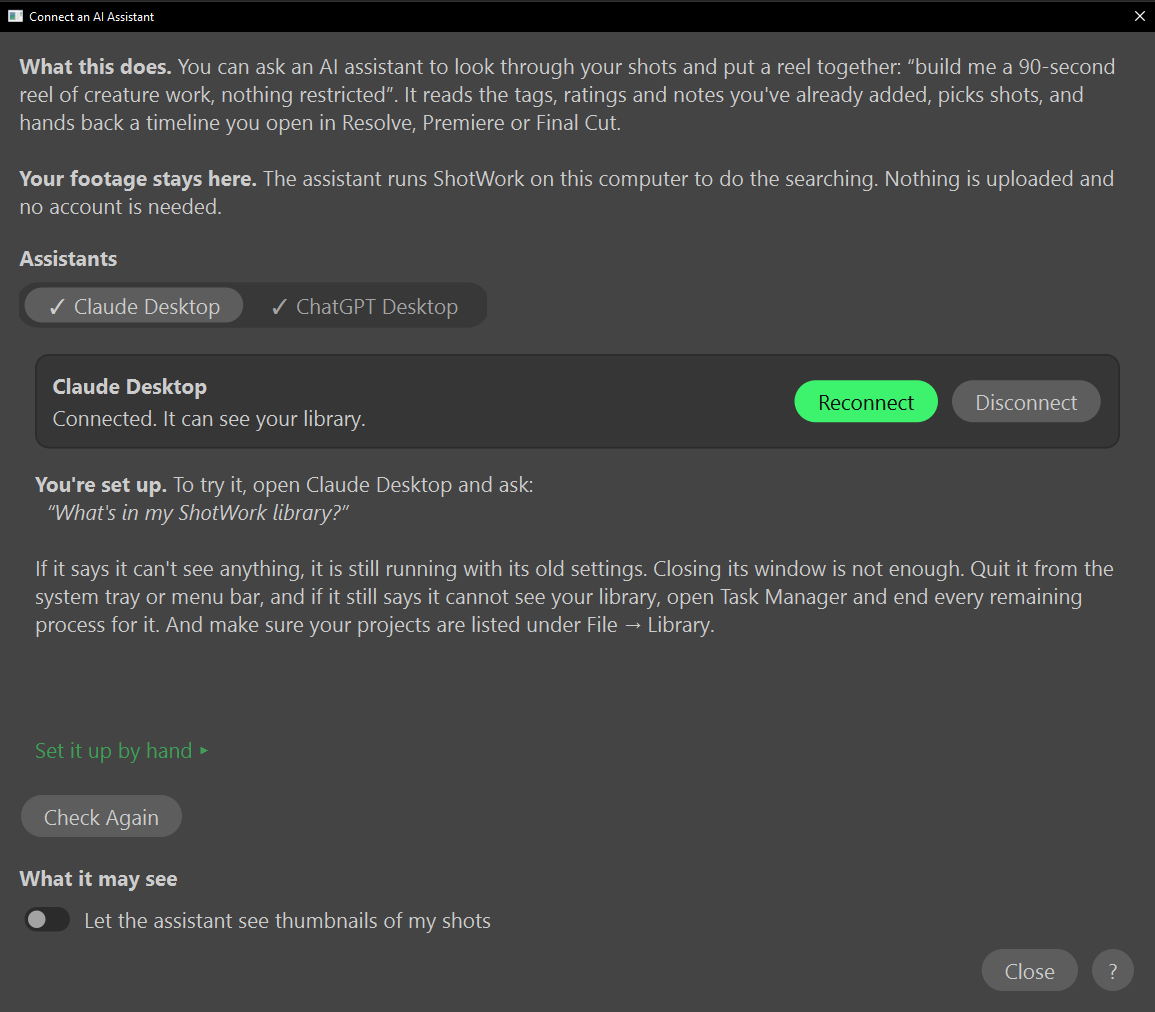
- Under Assistants, open the Claude Desktop tab. A tab carries a check mark once it is connected, so you can see which assistants are set up without opening each one.
-
Read the tab's status:
Status Button What it means Not installed on this computer. Get Claude Desktop… Opens the download page in your browser. ShotWork never installs other software for you. Installed, but not connected yet. Connect Ready to connect. Connected. It can see your library. Reconnect Already done. -
If you installed Claude Desktop while the window was open, open Claude Desktop once so it writes its settings, then choose Check Again.
- Choose Connect.
- Read the confirmation, which names the settings file ShotWork is about to change.
- Choose Yes.
-
Quit Claude Desktop completely, then open it again. It reads its settings only when it starts.
Closing the window is not quitting
Claude Desktop keeps running after its window closes. Quit it from the system tray on Windows or the menu bar on macOS. This is the step most people miss, and it looks exactly like the connection having failed; see The assistant cannot see your library if it does.
-
In Claude Desktop, ask: What's in my ShotWork library? It answers with your tags and how many shots you have.
- Decide whether it may see pictures. Under What it may see, turn on Let the assistant see thumbnails of my shots if you want it to look at a shot before choosing it. Leave it off and it works from text alone. See Pictures before you turn it on.
What happens
ShotWork adds one entry to Claude Desktop's own settings file, saying how to start ShotWork's library server. Everything else in that file stays exactly as it was, including any other servers you set up. If the file does not exist yet, ShotWork creates it.
From then on, Claude Desktop starts that server itself whenever it needs your library. ShotWork does not have to be open. The library is read fresh for every question, so tags and ratings you save mid-conversation count on the next one.
The pictures switch saves itself the moment you change it, and the server reads it on every question, so it takes effect at once. The same switch is the AI assistant row of Settings › Timeline Colors…, so you can find it later without opening this window.
If the settings file cannot be read, ShotWork refuses to change it rather than guess, and says Could not update the settings. The file is left untouched, and Connect a coding agent shows the entry to add by hand.
Why ShotWork shows up in Task Manager when it is closed
The server is ShotWork itself, started with --mcp-server. So once an
assistant is connected, you will see one or more ShotWork.exe
processes for as long as that assistant is running, even with every
ShotWork window closed. They are its doing, not a window that failed to
shut, and they stop when the assistant does.
This is also why installing an update asks to close ShotWork.exe when
you have no ShotWork window open. Letting Setup close them is safe and
loses nothing. Restart the assistant afterwards so it starts the new
one: until you do, it will say it cannot see your library.
Reconnect and disconnect
- Reconnect points Claude Desktop at this copy of ShotWork again. Use it after moving or reinstalling ShotWork. A tab that says Installed, but not connected yet. when you expected it to be connected usually means ShotWork moved.
- Disconnect appears once a tab is connected. It removes ShotWork's entry and nothing else. Restart Claude Desktop for it to take effect.
Connecting from a profile
An assistant has one ShotWork connection, and the window connects it to the profile ShotWork is running on. Choose Connect in a ShotWork started on a demo profile and, after a restart, the assistant sees the demo's library. The tab in your ordinary ShotWork then reads Connected to the demo profile's library instead until you choose Connect there and restart the assistant again.
Where Claude Desktop keeps its settings
| Platform | File |
|---|---|
| Windows, installer build | %APPDATA%\Claude\claude_desktop_config.json |
| Windows, Microsoft Store build | %LOCALAPPDATA%\Packages\Claude_<id>\LocalCache\Roaming\Claude\claude_desktop_config.json |
| macOS | ~/Library/Application Support/Claude/claude_desktop_config.json |
Windows has two Claude Desktop builds and they keep this file in
different places. The Store build is packaged, and Windows sends
everything a packaged app writes to AppData into its own folder
instead, where <id> is an id Microsoft assigns. ShotWork looks in
both and uses whichever is really there; Set it up by hand ▸ on
that tab shows the one it found.
The entry sits under mcpServers, keyed shotwork, and starts
ShotWork itself with --mcp-server. A tab says Connected. It can see
your library. only when that entry points at this copy exactly, which
is why an entry left over from an older install reads as not
connected.
Related
- Ask for a reel: what to say once it is connected.
- Connect a coding agent: the by-hand route for Claude Code, Cursor or VS Code.
- Connect ChatGPT Desktop: the other assistant that can run ShotWork on this machine.
- What stays on your machine: what the assistant can read.