Settings
Most of what you set in ShotWork is saved in the document it belongs to. The Settings menu holds what belongs to you, on this computer, whatever shot selects file or reel is open.
| Item | Does | See |
|---|---|---|
| Remap Hotkeys… | Changes any keyboard binding. | Hotkeys |
| Field Presets… | Opens the Fields window on your presets, the sets of fields a new shot selects file starts with. | Field presets |
| Timeline Colors… | Sets how the shot bands on the source timeline are colored and how light, how thick the color strip on reel clips is, and whether an AI assistant may see thumbnails. | Timeline colors |
| Thumbnail Cache… | Rebuilds or clears shot thumbnails. Unavailable on a reel tab. | Thumbnail cache |
| Downbeat Engine… | Installs the optional downbeat engine. | Downbeat engine |
| Components… | Shows the three components ShotWork works through and where each came from, and lets you supply a copy yourself. | Components |
Timeline colors
- Choose Settings › Timeline Colors…. Its window is titled Settings.
- Pick Shot band colors: Alternating, two grays taking turns along the timeline; Rating, grays that step lighter with each star; Muted palette, six soft hues in turn; or Unique, every shot its own hue, in shot-list order.
- Set Timeline shot color shade, from 1 to 9: lower is lighter. Preview shows the colors as you change either.
- Set Color by strip, from 2 to 24 pixels: how thick the strip along a reel clip's top edge is when the reel's clips are colored by a field.
- Choose Save.
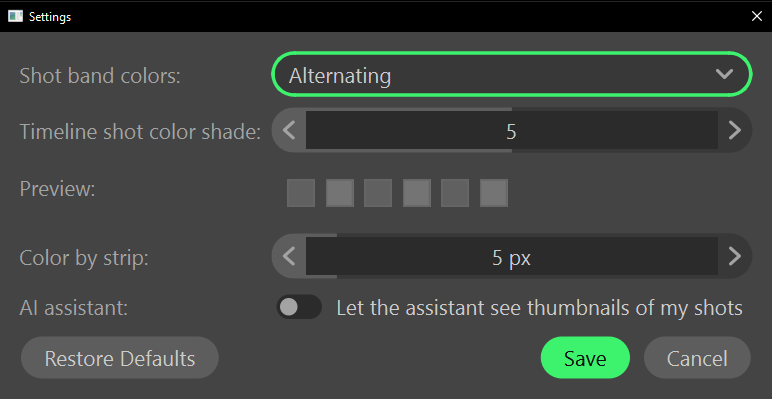
The shot bands on the source timeline and the strips on every open reel change as you go; Cancel puts them back. Restore Defaults puts the bands back to Alternating, the shade to 5 and the strip to 5 pixels, which still needs Save to keep.
The same window holds the AI assistant row, Let the assistant see thumbnails of my shots: the one switch for whether an assistant may be sent pictures. It saves itself the moment you change it. See Connect an AI assistant.
What ShotWork remembers
Besides the Settings menu, ShotWork remembers these on this computer, whatever document is open:
| Setting | Where you change it |
|---|---|
| The window's size and position, and the panes' widths | Resize the window, and drag the grips between the panes |
| The shot picker's list or grid, and its thumbnail size | A reel's Shots tab, or the Library window's Shots view |
| Which view the Library window opens on | View, in the Library window |
| How big logo tiles are | The size slider in the logo picker |
| Snapping on the reel timeline | Snap while dragging, or N |
| Frames instead of timecode on reels | Show times as, Timecode or Frames, and Display hours |
| Interest points on reel clips | Show interest points on clips |
| Which curve the beat lane draws | Curve, in a song's settings |
| Which field colors a reel's clips | Color by, under Reel Settings |
| Your hotkeys | Settings › Remap Hotkeys… |
| The shot band colors, their shade and the strip | Settings › Timeline Colors… |
| Whether an assistant may see thumbnails | Settings › Timeline Colors…, or the Connect window |
These live in the settings.json and hotkeys.json files in
ShotWork's app data.
Related
- Reel settings for the settings a reel saves in itself.
- Where ShotWork keeps its files.