Reel settings
The reel settings panel, on the right of a reel tab, has two parts. Selected Clip Settings, at the top, is about whatever you selected on the reel timeline, and its title follows the selection: a fade, a song or a stretch of the template band names itself there. With nothing selected it reads Nothing selected. Reel Settings, under it, holds the settings for the whole reel, and they stay put whatever you select.
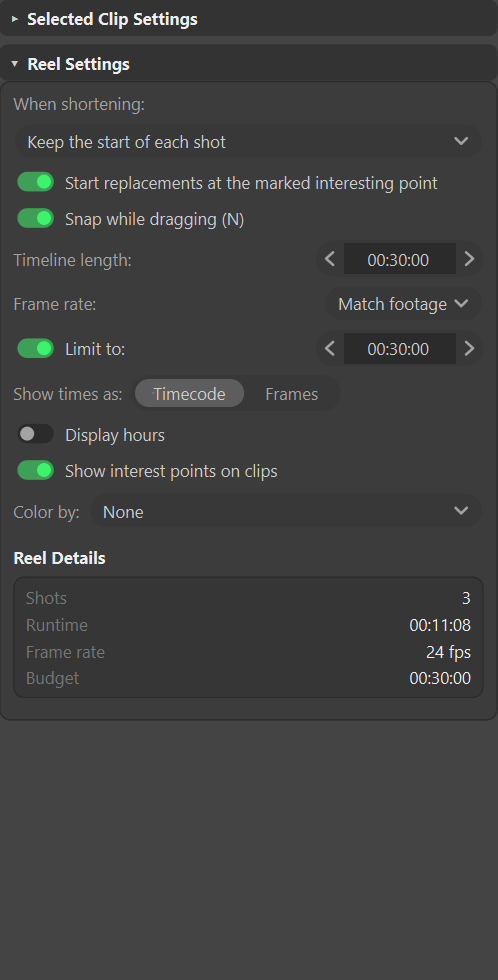
The settings
| Setting | Does | See |
|---|---|---|
| When shortening | Which part of a shot a shortened clip keeps: its start or its middle. | Holds and shortening |
| Start replacements at the marked interesting point | A longer shot that replaces a clip starts at its first interest point. On by default. | Where interest points come in |
| Snap while dragging, labeled with its hotkey | Trims, rolls, slides and song bar ends snap to other clips' edges, beats, interest points and the budget line. | Snapping |
| Timeline length | How much time the reel timeline shows. | Timeline length |
| Frame rate | The rate every clip is laid out on. | Frame size and rate |
| Limit to | The reel's length budget. | Set a length budget |
| Show times as | Timecode or Frames for every readout on the tab. Display hours beside it adds the hours to timecode. | How times read |
| Show interest points on clips | Draws each shot's interest points on its clip, and lets trims and slides snap to them. | Interest points |
| Color by | Tints every clip by one of its details, with a legend of the values and their counts. | Color the clips by a field |
Press N to turn snapping on or off without reaching for the panel, or hold Shift during one drag to reverse it for that drag only.
Exporting is in the File menu, not in this panel. See Exports in the File menu.
Reel Details and Needs Attention
Under the settings, Reel Details sums the reel up: the shot count, its length, its frame rate, and the budget when there is one. Anything that blocks export is listed under it, headed Needs Attention. That list is the problems list the rest of these pages refer to: each line names the clip, and choosing the name selects it on the reel timeline.
What a reel saves
A reel is an edit decision, not a render: which shots play, in what order, for how long, and what sits over and under them. It holds no footage and no frame positions. ShotWork works those out from your shot selects every time it opens the reel, so a change to a shot's in or out point reaches every reel that uses it. See File formats.
- Saved with the reel: its clips, cards, gaps, fades, songs and templates, and When shortening, Start replacements at the marked interesting point, Timeline length, Frame rate and Limit to.
- Remembered by ShotWork for every reel: Snap while dragging, Show times as, Display hours, Show interest points on clips, Color by, the picker's view and thumbnail size, and the Curve a song's beat lane draws.
- Only while the reel is open: the playback range, the playhead and the selection.
Timeline length
Timeline length is how much time the reel timeline shows: 30 seconds on a new reel. It grows by itself when the reel gets longer, and never shrinks by itself, so set it shorter when you want the edit to fill the reel timeline again. A value shorter than the reel is allowed and cuts the view off; a value under one second is refused.
Click the field, type a length and press Enter, or drag across it: one frame per step, whichever way times are shown.
How times read
Positions and lengths on a reel read as timecode: 01:23:07 is 1 minute
and 23 seconds in, plus 7 frames into the next second. With Display
hours on, the hours come first: 00:01:23:07. A drop-frame rate (29.97
or 59.94) writes a semicolon before the frames. With Show times as set
to Frames, every readout is a running frame count instead. A length,
such as how much of a shot is available, reads the same way; it never reads
as a fraction of a second.
To type a position, enter minutes, seconds and frames, such as 1:23:07;
seconds and frames alone work too, so 12:00 is twelve seconds. A part you
leave empty counts as zero: select the 23 in 1:23:07, delete it and press
Enter, and the field reads 01:00:07. With Frames on, type a whole
number. Anything else puts the field back to what it was.
Frame size and rate
The frame size is chosen from the clips: the size most of them are, or 1920×1080 while the reel has none.
A reel has one frame rate, and Frame rate under Reel Settings says which. Match footage uses the rate most of the clips have, the higher one on a tie, and 24 fps while the reel has no clips; it keeps following the clips as you add and remove them. A rate you pick stays put when the clips change.
A reel you start empty begins on Match footage. A draft reel, or a reel an AI assistant builds, begins pinned to the rate it was built with; pick Match footage to have it follow the clips again. Changing the rate lays every clip out again on the new rate, each hold the same length in seconds, and is one undo step.
A clip at a different rate is placed exactly and flagged under Needs Attention, as "Shot 052: 23.976 fps on a 24 fps timeline; your editor will conform it on import." ShotWork does not retime it on the reel. Export Video converts it to the reel's rate, and Export Timeline leaves that to your editor.
How the rate is stored
The reel stores its frame rate as an exact fraction, 24000/1001 rather than 23.976, so it can never read back as 23.976000000000003 and flag footage that actually matches. A reel with no stored rate follows its footage.
Color the clips by a field
Color by tints every clip on the reel timeline by one of its details, so you can see at a glance how the reel mixes projects, companies, ratings or any field your shot selects carry. A strip along the top edge of each clip takes the color of that clip's value, and the rows in the shot picker take the same tint. None is the default.
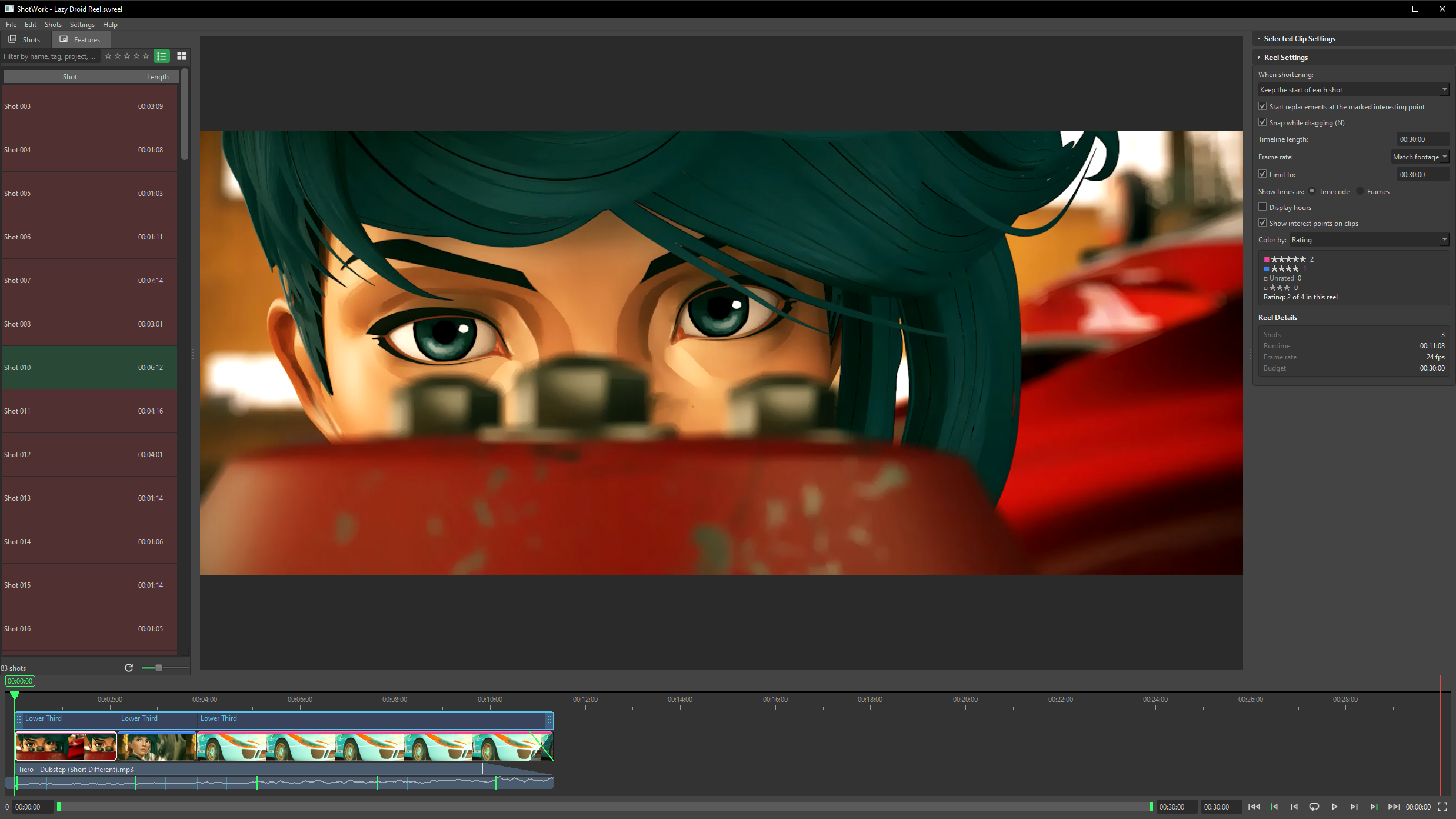
- Open Reel Settings in the panel.
- Pick a field from Color by. The list holds Selects, Rating and Tags, then every field your shot selects define.
- Read the legend under it: one row per value with its swatch and how many clips carry it, the values in your library that this reel does not use grayed at the bottom, and a line such as "Project: 2 of 9 in this reel".
- Click a value in the legend to select every clip that carries it.
The strip is five pixels thick to start with. Settings › Timeline Colors… has a Color by strip box to make it thicker or thinner; the change applies to every reel.
A value keeps its color everywhere: colors come from the library's values, not from this reel, so a project is the same color on every reel and adding a clip never recolors the others.
Tags and any list field can hold several values per shot, so those do not color by value. Picking one shows a second dropdown for a single value, and each clip is colored by whether it has that value: the clips that do take the color, the rest stay plain, and the legend counts the two.
Exports in the File menu
Exporting lives in the File menu. On a reel tab, File › Export… (Ctrl+E) exports the reel as video, and File › Export Timeline… (Ctrl+Shift+E) exports it as a timeline, in the format you pick as the file type in the save window. Both are unavailable while Needs Attention lists anything. See Export a reel as video and Export a timeline.
Output presets
Not built yet
Output presets are not built.
Output, under Reel Settings, sets the reel's frame size, rate and shape from a preset: 1080p24, 2160p24, 9:16 for vertical, or 1:1 for square. Clips fit into the preset's frame, letterboxed where their shape differs, and each clip's Scale crops in from there. See Clip picture.
Frame-rate conform
Not built yet
Frame-rate conform is not built.
A clip at a different frame rate plays at its real speed and length at the reel's rate. ShotWork drops or repeats the nearest frames to fit, the same way every time, so nothing is slowed down or sped up, and the problems list notes each clip it conformed.
Related
- Holds and shortening.
- Arrange clips for snapping and the edits it helps.
- Clip picture for scaling a clip inside the reel's frame.
- Export a reel as video.