Install ShotWork
Installing ShotWork is two things: getting the application onto your machine, and letting it fetch the video software it works through, which it does only with your say-so.
Install it
- Download the ShotWork installer for Windows from shotwork.tools.
- Run it and follow its steps. It installs ShotWork for your user account and adds it to the Start menu.
- Open ShotWork from the Start menu.
- Download the ShotWork disk image for macOS from shotwork.tools.
- Open it, and drag ShotWork into Applications.
- Open ShotWork from Applications.
Double-clicking a .swselects shot selects file or a .swreel reel then
opens it in ShotWork.
The components
ShotWork plays video through libmpv and reads and exports it through ffmpeg. Both are separate projects with their own licenses, so ShotWork fetches ffmpeg at your request rather than carrying it, and names the source and the license each time it asks. On Windows libmpv comes with the installer; on macOS it is fetched too.
| Component | What it does | When ShotWork asks |
|---|---|---|
| libmpv | Plays video in the viewer | Never on Windows: it comes with the installer. On macOS, before the window first opens; ShotWork cannot run without it, so declining closes ShotWork. |
| ffmpeg, with ffprobe | Reads videos, makes thumbnails, detects shots and exports | In Set up ShotWork on the first launch. If you skipped that, the first time you open a video, import clips, detect shots, export, or rebuild thumbnails. Declining cancels only that action. |
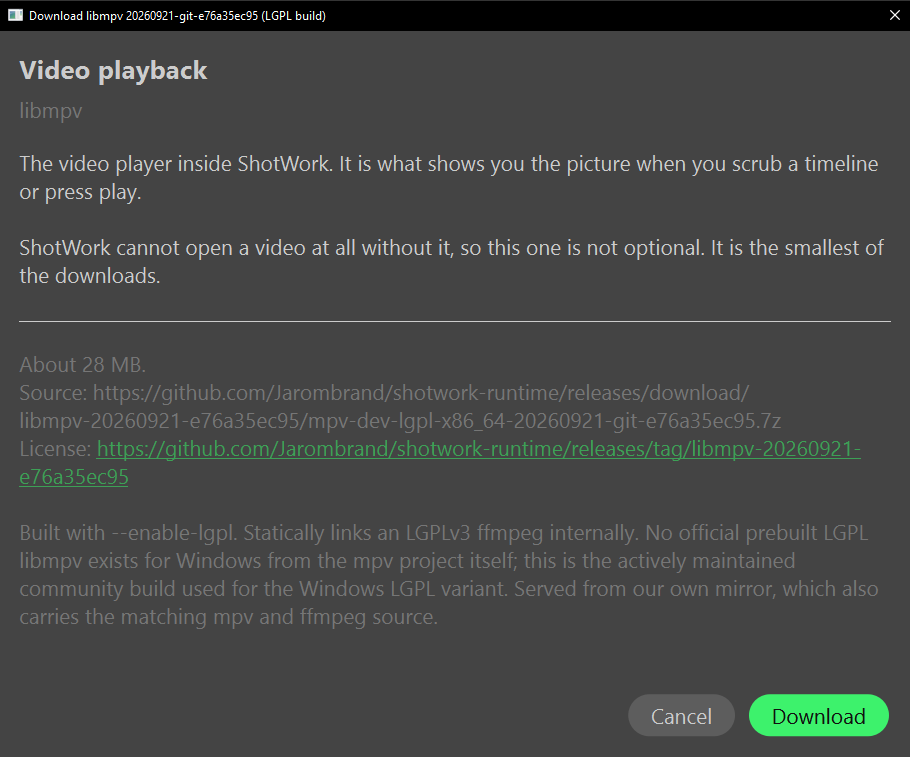
Each download dialog is titled Download followed by the component and the build it offers. It names the exact address it will fetch, links the component's license, and fetches nothing until you choose Download. A bar shows the progress. Cancel stops a download in progress or closes the dialog, and a download that fails says why and lets you try again.
| Component | Windows | macOS |
|---|---|---|
| ffmpeg | BtbN's LGPL build, at one pinned version checked against its published checksum, served from shotwork-runtime | evermeet.cx's build |
| libmpv | Included in the installer: zhongfly's mpv-winbuild, LGPL build, at one pinned version, with its source published at shotwork-runtime | media-kit's libmpv-darwin-build |
A fetched component is unpacked into ShotWork's app data folder and
remembered, so the dialog does not come back. If ffmpeg is already
installed and on your PATH, ShotWork uses it rather than fetching a
second copy. Neither component is ever installed system-wide by ShotWork.
Without ffmpeg, the reel preview cannot prepare gaps and cards and says so
in its problems list,
and music analysis decodes songs by itself.
Where ShotWork looks for a component
Each time it starts, ShotWork looks for a component at the path it
remembered (one you supplied under Settings › Components…), then in
its own data folder, then beside the installed program, then on PATH.
The installed copy comes after ShotWork's data folder on purpose: a
newer libmpv you fetched through Settings › Components…, or one you
pointed ShotWork at, has to win over the one the installer put down,
which an upgrade would put back.
Settings, hotkeys, the library, the fetched components and the caches live in one folder for your user account; see Where ShotWork keeps its files. Your shot selects, reels and videos are never in there.
Related
- First launch is what happens the first time it opens.
- Documents and tabs for how shot selects and reels open and save.
- Marking shots names the regions you will be working in.