Detect shots
ShotWork can find the cuts in a source and propose a shot for each stretch between them. On footage with clean hard cuts this does most of the marking for you. On dissolves, whip pans and long takes it does not, and you mark by hand.
Steps
- Load the video: click its header row in the shot list, or select one of its shots.
- Choose Shots › Detect Shots… (Ctrl+Shift+D). Right-clicking the header and choosing Detect Shots… does steps 1 and 2 together. If ShotWork does not have ffmpeg yet, it offers to fetch it first.
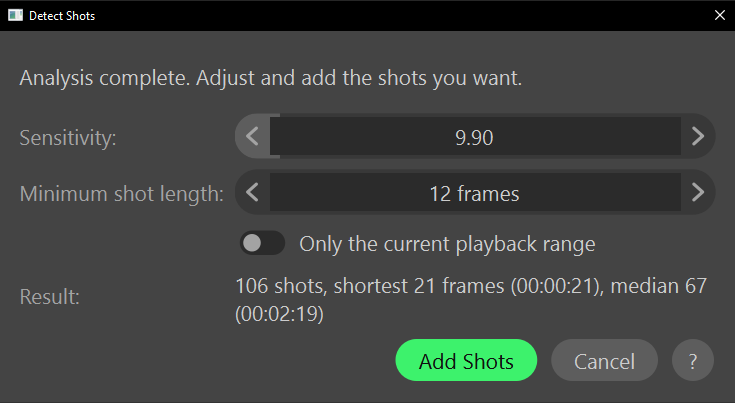
- Wait while "Analyzing video…" counts up to "Analysis complete. Adjust and add the shots you want." The whole video is read once, so the settings below answer instantly afterward.
- Adjust Sensitivity. Lower finds more cuts, including false ones; higher risks missing soft cuts. It starts at a value ShotWork picks from this video, because clean animation needs a far lower number than grainy live action.
- Set Minimum shot length, in frames. A cut closer than this to the previous one is ignored, so a flash frame or a hard camera move stays part of the shot around it instead of becoming a shot of its own. It starts at about half a second at the video's frame rate.
- Turn on Only the current playback range to add shots inside the range alone. It is available when a playback range is set, and costs nothing extra.
- Read Result: how many shots, the shortest, and the median length. It answers as you change the settings.
- Choose Add Shots.
Without a video loaded, the command answers "Open a video first."
What happens
Every proposed shot is added as an ordinary shot, numbered on from the shots already in the list, and untagged. Nothing ties them to the detection: running it again reads the video again and adds a second batch rather than replacing the first. ShotWork makes their thumbnails under a progress window; canceling it adds none of the shots. The whole batch is one undo step, and the first new shot is selected with the playhead on it.
Delete the ones you do not want, adjust the ones that are close, and name the rest.
Tip
Detection is a starting point, not an answer. Run it with a higher Sensitivity and a longer Minimum shot length, then split the few shots it merged. That is usually faster than cleaning up an over-detected list.
When detection runs two shots together
Dissolves in particular are not detected, and a missed cut leaves one band covering two shots. You do not need to detect again. Park the playhead on the first frame of the second shot and press S: the band splits there, into two shots that meet at that frame.
To be sure you are on the first frame of the new shot rather than the last frame of the old one, step across the cut one frame at a time with Left and Right.
How cuts are scored
ffmpeg's scene detection scores how different each frame is from the one before it, from 0 to 100, for every frame of the video in one pass. Sensitivity is the score a frame needs to count as a cut, applied to the stored scores, which is why changing it is instant. Its starting value is the video's 90th-percentile score times 17, kept between 1 and 30. Minimum shot length then drops any cut too close to the last one kept, and folds a too-short first or last stretch into its neighbor.
Related
- Organize shots, for splitting, deleting and reordering what detection produced.
- Move around a source, for setting a playback range.
- Mark in and out points, for the shots detection cannot find.