Export a reel as a timeline
When the reel's final polish belongs in your editor, ShotWork writes the edit as a timeline file rather than a video: every cut lands on the same source frames, and cards, music and overlays arrive as items of their own to keep working on.
Two formats are offered, and both carry the same edit. Final Cut Pro XML is the one editors most widely read, so it is the default. OpenTimelineIO is a newer open format, which some editors read directly and others through a plugin. ShotWork remembers whichever you used last.
Before you start
- A license. Timeline export is part of the paid license. Without one, Export Timeline… offers to enter a license before anything else. See The free tier and your license.
- Nothing listed under Needs Attention in the reel settings panel. File › Export Timeline… is unavailable until the list is empty.
Steps
- On the reel's tab, choose File › Export Timeline… (Ctrl+Shift+E).
- If the reel holds restricted shots, Restricted clips lists them and asks "Export anyway?", unless the reel was built with Include restricted shots.
-
In Export Timeline, pick the format as the file type. ShotWork gives the file the right extension whatever you typed.
Pick Final Cut Pro XML (.xml) for Resolve, Premiere, FCP or OpenTimelineIO (.otio) in Save as type.
Pick Final Cut Pro XML (.xml) for Resolve, Premiere, FCP or OpenTimelineIO (.otio) in the format pop-up under the name.
-
Choose where to save. It starts as the reel's name in the reel's own folder, or in a ShotWork Reels folder in your home folder for a reel you have not saved.
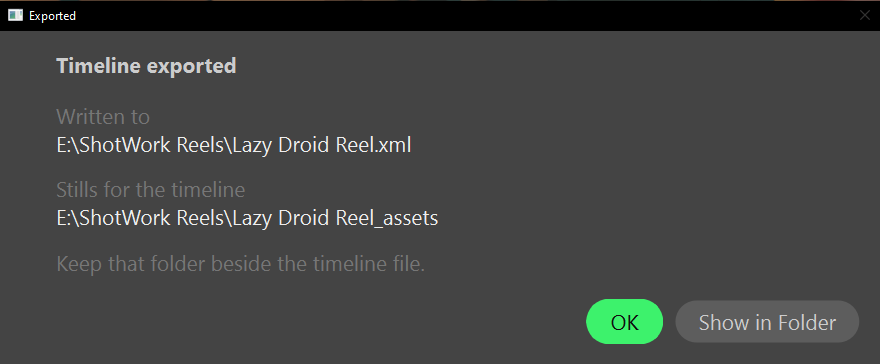
- Read Exported: it names the file, and the assets folder when one was written.
Export Timeline… stays in the File menu on a shot selects tab, unavailable, since shot selects have no timeline to hand over.
What happens
Every picture your editor needs that is not already a file goes into one
<reel name>_assets folder beside the timeline: a small PNG for each color
card, a frame-sized PNG for each title card, and an overlay still per shot.
Keep that folder next to the timeline file. If your editor reports those
offline on import, relink once to that folder and all of them come back.
Inside the timeline:
- Clips point at your original video files, with in and out points in each video's own frame rate and embedded timecode, so a file that starts at 01:00:00:00 still links.
- Gaps stay gaps, the same length, and the length budget is ignored: the timeline carries the whole reel.
- Cards are clips of their images, named after their color, template or image file.
- Fades on clip edges arrive as dissolves to or from black.
- Overlays are a separate video track named Overlays, one still per shot, rather than a burn-in, so turning them off in your editor is one click. Titles arrive as images, not as your editor's own text.
- Music is a track named Music, with each enabled song at its place on the reel. Muted songs and songs whose file is missing are left out. Level and fades are yours to set again; ShotWork records its values in the clip's metadata.
- Scale travels in Final Cut Pro XML as the clip's scale, which matches ShotWork only when the footage is the reel's frame size. In OpenTimelineIO it is a note for your editor, not applied.
- A clip at a different frame rate keeps its own rate, as Needs Attention already warned, and your editor conforms it on import.
Why the cut points are written in the source's rate
Each clip's range is written in its source's own frame rate, not the reel's. Expressing an in point in timeline frames would round it into a different timebase and could shift the cut by up to half a frame, which is exactly the silent drift ShotWork exists to avoid. A reel that mixes frame rates is declared as such, and each clip is left at its native rate for the editor to conform.
What ShotWork adjusts in a Final Cut Pro XML file
After writing the file, ShotWork corrects what the library that writes it leaves out: still images lose a sound track they do not have, songs lose a picture they do not have, each still declares its pixel size, each song is declared as stereo, and each scaled clip gets a scale filter. If anything in the file cannot be read back, it is left exactly as written.
Related
- Export a reel as video when you want the file rather than the edit.
- Cards and Overlay templates for what the assets folder holds.
- Transitions for the fades that become dissolves.
- Open a video for relinking a source that has moved since the reel was cut.