Open a video
A shot selects file starts empty. Opening a video adds it as a source, ready to mark.
Steps
- If you do not have shot selects open, choose File › New Selects (Ctrl+N). With more than one field preset, ShotWork asks which preset's fields to start from; see Field presets.
- Choose File › Open Video… (Ctrl+Shift+O). If ffmpeg, which ShotWork reads video with, is not installed yet, ShotWork offers to fetch it first; see Install ShotWork.
- Pick the video file. ShotWork reads its frame rate, length and frame size, then shows the first frame in the viewer.
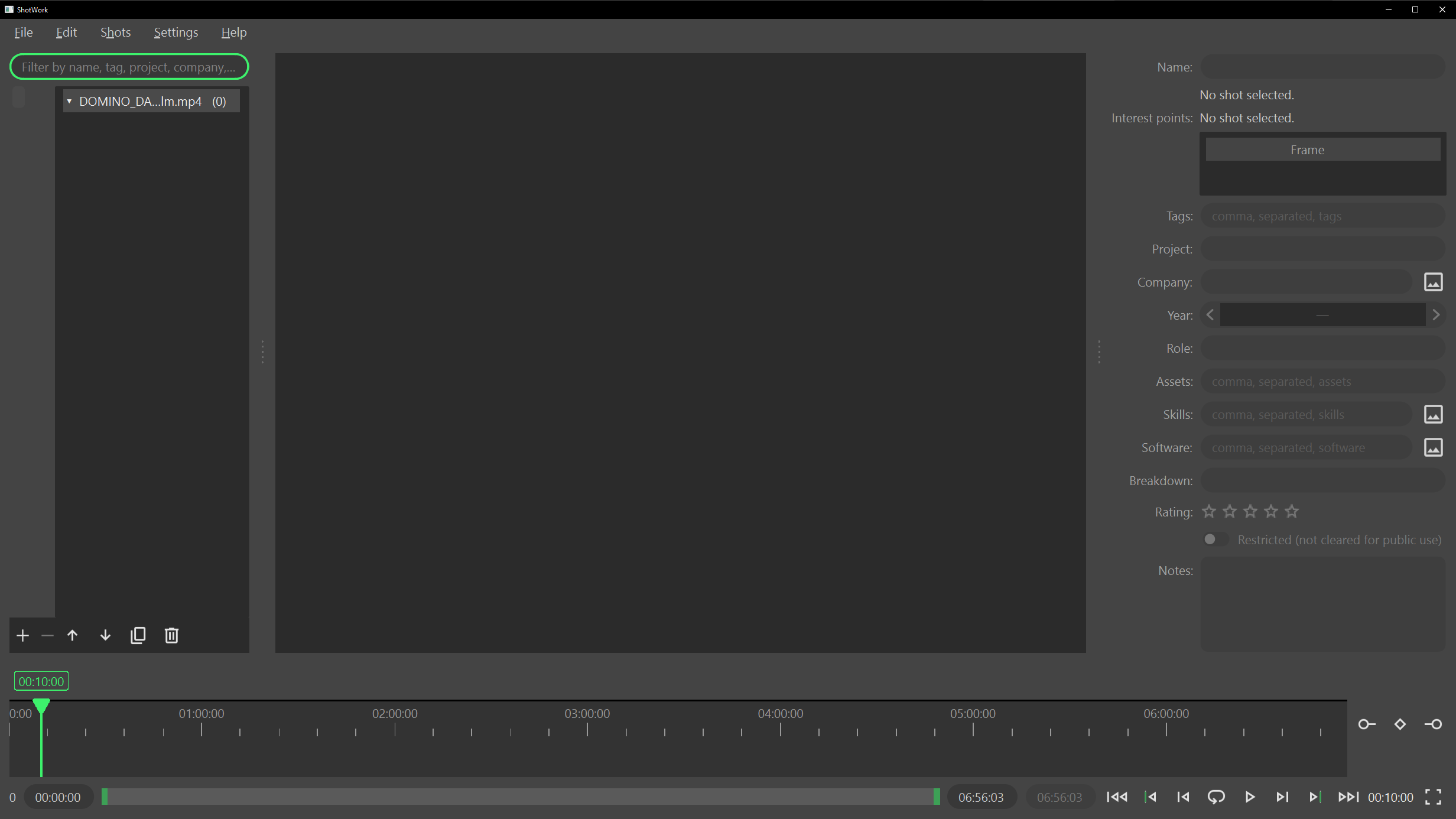
The file picker lists MP4, MOV, MKV and AVI files; choose All files to try anything else. See Supported media.
Warning
A file with a variable frame rate opens after a Variable frame rate detected warning. In such a file "which frame is this" has no single answer, so marks and exports may land a frame off. Convert it to a constant frame rate before marking anything you care about.
What happens
The video appears in the shot list as a header row with its shot count, and the source timeline under the viewer spans the whole video. File › Open Recent Video reopens videos you have opened before.
ShotWork stores the path to the video, not the video itself. A .swselects
file stays small, and your footage stays where you put it. Thumbnails and beat
analysis are cached separately, in ShotWork's app data.
When you save, ShotWork also notes where each video sits relative to the shot selects file's own folder. On opening, it looks in both places: the relative one first, then the full path. So a project folder moved as a whole still finds its footage, and so does a shot selects file copied elsewhere with the footage left in place. Save the file beside your videos, or in a folder above them, and you can move the whole set together.
Frame rate and frame accuracy
ShotWork reads the source's frame rate with ffprobe and keeps it as an exact fraction, not a rounded decimal, so 23.976 fps is stored as 24000/1001. Every in and out point is a whole frame at that rate, which is why cuts land where you put them rather than a frame or two away. A file whose average frame rate differs from its nominal one is flagged as variable. When two files share a name, a short fingerprint of each decides which is the one the shots were marked against.
More than one source
Repeat the steps to add another video to the same file. Each video gets its own header row with its shots under it.
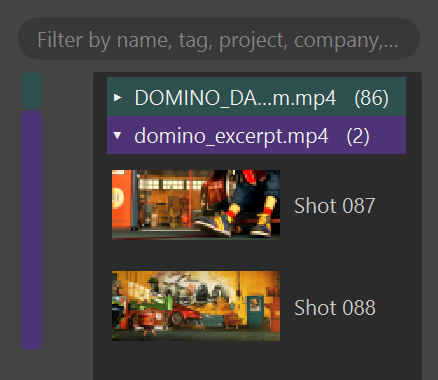
- Click the arrow at the left of a header to collapse or expand that video's shots. This changes how the list looks, nothing else, so it is not saved.
- Click anywhere else on a header to load that video without changing the selection. It is the way back into a video with no shots yet.
- Click a video's bar down the left edge of the list to select every shot from that video and load it. Each video has its own color.
- Hover a header or a bar to see the file's name, frame size, frame rate and shot count.
Selecting a shot loads its video in the viewer. The source timeline shows the shots of the loaded video only. Once a file has more than one video, each shot's band carries a thin stripe in its video's color.
Right-click a header for Open This Video, Collapse or Expand, Detect Shots…, Reveal in File Browser, and Remove Video (12 shot(s))…, where the number is that video's shot count. The + button under the bars imports clips; see Import clips.
Remove a video
Choose Remove Video (12 shot(s))… on a header's right-click menu, or select a shot and choose the − button under the bars. Remove video? names the file and how many shots go with it; a video with no shots says so instead. Removing takes out the video and every shot marked in it, as one undo step. The video file itself is never touched.
If a video has moved
When a video cannot be found, Source not found names it and asks whether to locate it. When several are missing, it says how many more.
- Choose Relink…. The file picker opens in the nearest folder of the old path that still exists.
- Pick the video where it is now.
- If the file you pick does not match the one the shots were marked against, Different file warns that it may be a re-render or a different cut, whose frame numbers may not line up. Choose No unless you know it is the same cut.
Other missing videos in that same folder are relinked at the same time, and Sources relinked says how many. Cancel stops asking about the rest; the shots of a missing video stay in the list until you relink it, and clicking any of them asks again.
Any open reel using the footage updates the moment it is relinked. See Add shots for how a reel shows a clip whose video is missing.
Related
- Mark in and out points, the next step.
- Import clips, if your shots are already separate files.
- Detect shots, to have ShotWork propose the shots.
- File formats, for what a shot selects file stores about each video.