Components
ShotWork works through three pieces of software that are not ShotWork: two it fetches the first time it needs them, with your say-so, and one that comes with the Windows installer. Settings › Components… shows what it found, and lets you supply a copy yourself instead.
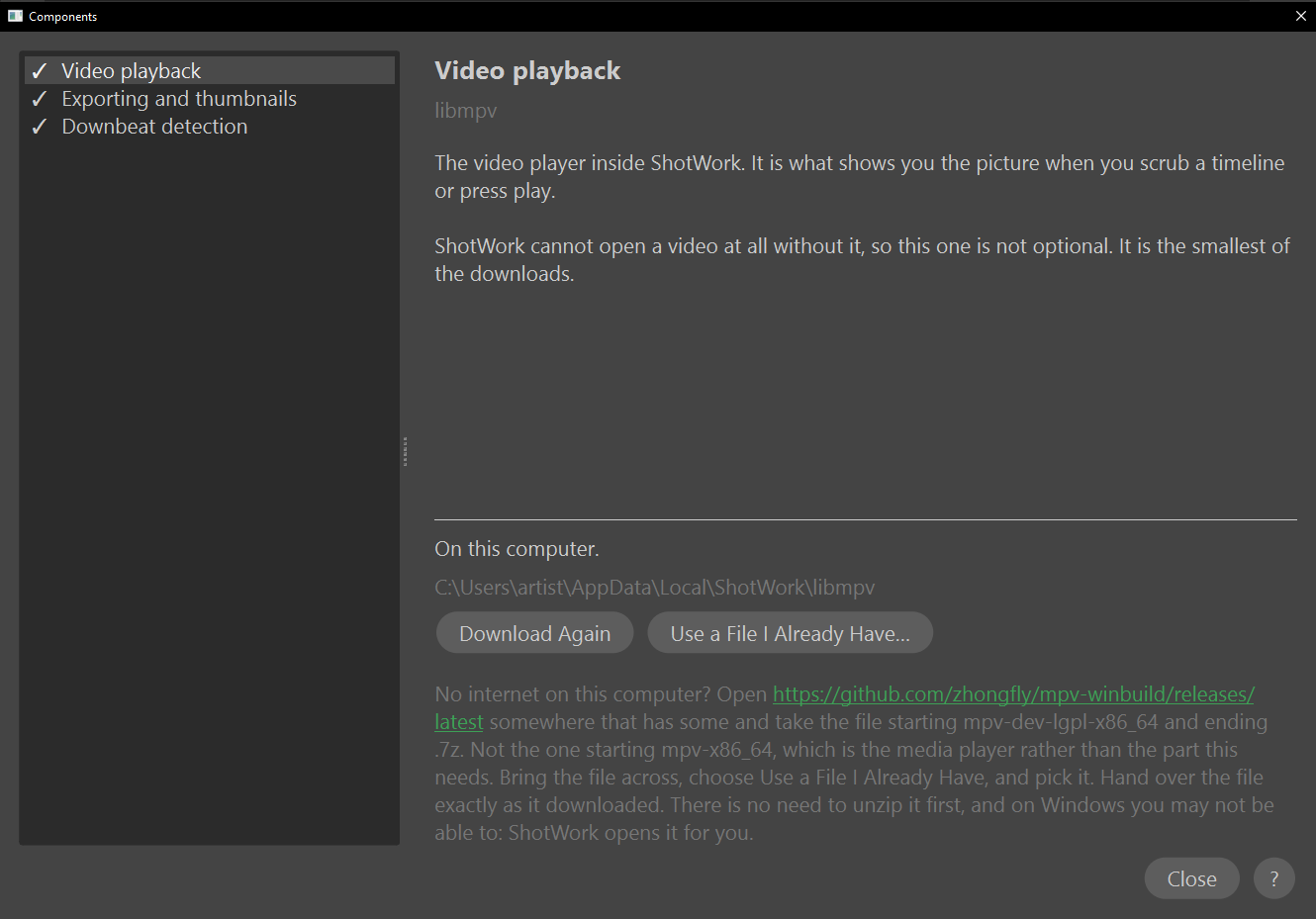
Pick a component on the left and its detail fills the panel on the right.
You will not normally need this window. It is here for three situations:
- You already have ffmpeg on this computer and would rather ShotWork used that one than fetched another.
- This computer has no internet, or is on a work network that blocks the sites the downloads come from.
- A download failed and you want to see what is missing.
What each one is
| Component | What you lose without it |
|---|---|
| Video playback | Everything. ShotWork cannot open a video at all, so it will not start. |
| Exporting and thumbnails | Exporting clips, rendering a reel, and the small pictures beside each shot. Marking and describing shots still work. |
| Downbeat detection | Only downbeats. Ordinary beat detection is built in and unaffected. See Downbeat engine for what it is and how long it takes. |
A check mark beside a name means ShotWork has it. The panel on the right says where that copy came from, which is how you tell one you supplied apart from one ShotWork fetched.
Downbeat detection sits in the same list but installs differently: it builds an environment of its own rather than being a single file, so its panel has Download, Verify and Remove instead.
Download it
Choose Download on the component's panel; once a copy exists the button reads Download Again. This is the same download the first-launch window offers, and it is all you need when the computer is online.
Use a file you already have
Choose Use a File I Already Have… on the panel, then pick the file. ShotWork accepts either of two things:
- The program itself, such as
ffmpeg.exe. ShotWork uses it where it is and does not copy it, so an ffmpeg your studio keeps up to date stays the one copy. - The download it came in, a
.zip,.7zor.tar.gz, exactly as it arrived. ShotWork opens the archive itself, which matters for video playback on Windows: that download is a.7z, which Windows cannot open on its own, and ShotWork carries a 7-Zip of its own for it.
If you pick the wrong file, ShotWork says so and changes nothing.
Downbeat detection is the exception
It comes in parts, and only one of them is a file you can hand over.
- Its own copy of Python, about 25 MB, can be supplied like the other two components: Use a Python I Already Have… on its panel, which names the page to fetch it from.
- PyTorch and beat_this, the other 300 MB or so, are installed by a package installer that fetches them itself. There is no file to point at for those.
So the engine needs a connection either way. Supplying the Python is worth doing only if that one download is the part that failed, which happens on work networks that allow the package installer's sites but block the one the Python comes from.
Getting the files on a computer with no internet
Each panel names the page to download from and which file to take. Open that page on your phone or on another computer, download the file, copy it across on a USB stick, then choose Use a File I Already Have… and pick it. Do not unzip it on the way.
Take the file the panel names and not another one on the same page. The video player's page also carries the mpv media player, whose files look similar and are not what ShotWork needs. The panel spells out which one to take.
Setting up several computers
Once one computer is working, its fetched ffmpeg is in the ffmpeg
folder of its app data folder, and on macOS
libmpv is in libmpv beside it. Copying those folders to the same
place on another computer works, and saves downloading them again. On
Windows, libmpv comes with the installer, so there is nothing to copy
for it.
Related
- Downbeat engine, which manages the third component and its own copy of Python.
- Where ShotWork keeps its files.
- Troubleshooting.