Describe a shot
The detail panel on the right holds everything ShotWork knows about the selected shot besides its in and out points. This is not bookkeeping: the reel editor runs on these fields. Overlay templates print them, draft reels (reels ShotWork fills from your ratings; see Start a reel) pick by them, and the filter box searches them.
Fill them in while the shot is in front of you. Reconstructing them later means watching the film again.
The fields
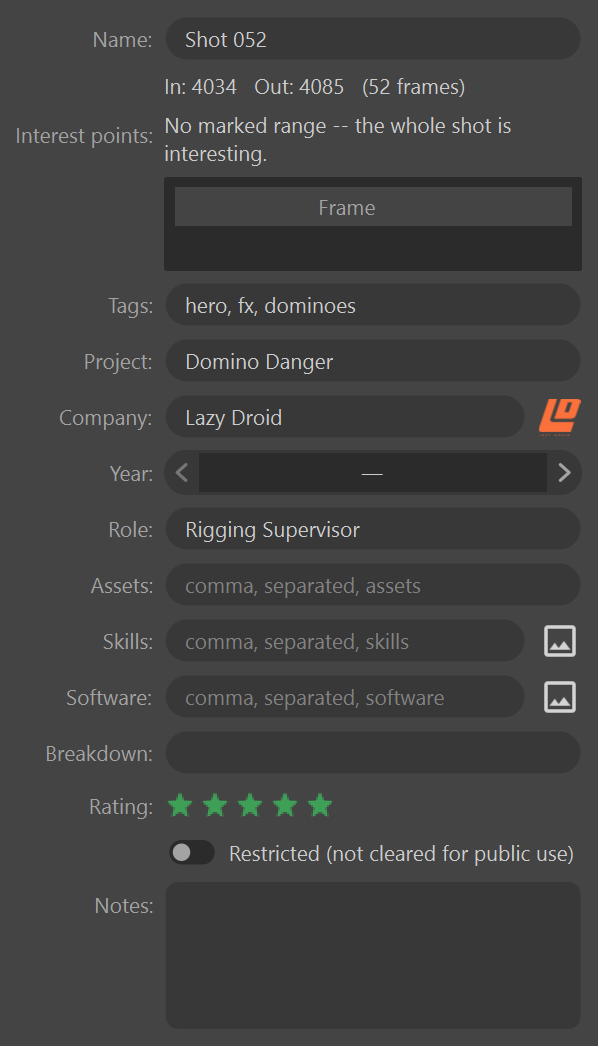
Under Name, the panel shows the shot's In, Out and length in frames. Those change on the timeline, not here. The fields between Tags and Rating come from the shot selects file's field preset, so yours may differ; this table shows the built-in VFX / animation preset.
| Field | Holds | Used later by |
|---|---|---|
| Name | What this shot is. New shots are numbered, such as Shot 004, and an imported clip takes its file's name. | Export file names, overlays, the shot list |
| Interest points | Frames worth keeping. See Interest points. | Replacements and draft reels |
| Tags | Keywords, separated by commas | Filtering, draft reels |
| Project | The production the shot came from | Overlays, filtering, draft reels |
| Company | Who it was made for, with its logo | Overlays, logos, filtering, draft reels |
| Year | The year the work was done. Stepping up or down from empty starts at the current year. | Overlays, filtering, draft reels |
| Role | What you did on it | Overlays, filtering, draft reels |
| Assets | What you worked on, separated by commas | Overlays, filtering, draft reels |
| Skills | What you brought to it, separated by commas. Each value can carry a logo. | Overlays, logos, filtering |
| Software | The packages you used, separated by commas. Each value can carry a logo, so an overlay can print them. | Overlays, logos, filtering |
| Breakdown | What you did on the shot, in your own words | Overlays, filtering |
| Rating | Zero to five stars | Draft reels, the shot picker's stars |
| Restricted (not cleared for public use) | Work you may not show publicly. See Restricted. | Overlays, draft reels, reel export, the AI assistant |
| Notes | Anything else | Filtering |
Each kind of field saves in its own way:
- Text fields, such as Name, Project and Role, save when you press Enter or leave the field, if you changed something. Clearing one leaves the field empty.
- List fields, such as Tags, Assets, Skills and Software, split what you type on commas. Spaces around each item and empty items are dropped.
- Number fields, such as Year, change as you step or type. An empty number shows a dash.
- Choice fields, in presets that have them, apply as soon as you pick. A value the preset no longer offers is kept, marked (not in this preset).
- Rating: click a star, or drag across the stars. See What the stars mean.
- Restricted applies on every click.
- Notes saves when you leave the box, since Enter starts a new line.
Every change is one undo step, named in Edit › Undo, and reaches any open reel that uses the shot at once.
Fields remember what you have typed before, in this file or any other, and suggest it as you type. In the built-in preset that is Tags and every text and list field from Project to Breakdown. Company also suggests every name that has a logo, and Project the projects in your library. Keep typing to ignore a suggestion, or press Down then Enter to take it.
What the stars mean
A rating is a quick editorial judgment, not a score. The point of it is that a draft reel can fill itself from your best work without you picking shot by shot, so what matters is that you use the same scale twice.
| Stars | Meaning | Use it for |
|---|---|---|
| ★ | Not reel material | Keep for records or reference. |
| ★★ | Weak | Only if you need filler. |
| ★★★ | Solid | Belongs in a reel. |
| ★★★★ | Strong | A highlight. |
| ★★★★★ | Hero shot | Opener or closer. |
Unrated is its own state, not a zero. A shot you have not judged yet never
matches a rating:3 filter and is never picked by a draft reel, which is
what you want while a marking pass is still in progress.
Set a rating
| Do this | Does |
|---|---|
| Click a star | Sets that rating |
| Drag across the stars | Sets it as you go |
| Click the star already set | Clears it back to unrated |
| Drag off the left edge | Clears it |
| Hover | Previews what a click would give |
| Press 0 to 5, with the stars focused | Sets that rating |
| Left and Right, with the stars focused | Adjusts it up or down |
With several shots selected, a rating applies to all of them, and the row is tinted while they disagree. See Editing several shots at once.
Edit the fields
Shots › Fields… opens the Fields window on this shot selects file, where you can add a field, rename one, change its type while no shot has used it, or remove it. The same window holds the presets that new files start from; editing a preset leaves this file alone. See Edit the fields for the steps and Field presets for how presets and files relate.
Logos
A field that carries logos, Company in the built-in preset, has a button beside it showing the logo for the value you typed.
A choice field offers several options, and a list field holds several
values at once. For those, the button opens Logos for <field>
instead: every value on its own row with its own logo button, so you can
see what each one has and change any of them in one place. A list holding
more than one value shows a several-pictures icon, since no single logo
stands for the field.
- Type the studio's name.
- Choose the logo button beside it. Choose a Logo for Lazy Droid opens on your logo pool.
- Double-click a logo, or select it and choose Apply.
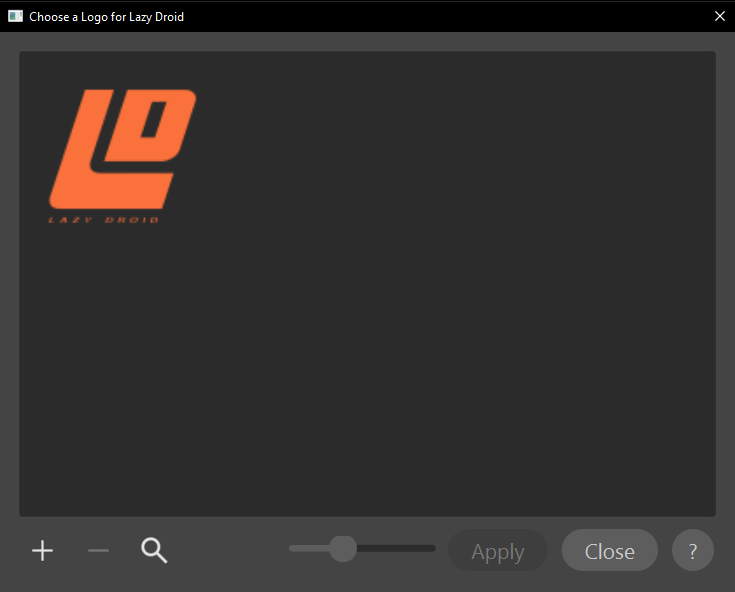
- The + button adds an image from disk to the pool and chooses it at once.
- The − button removes the selected logo from the pool, after naming every value that uses it.
- The search button opens a web search for the studio's logo in your browser.
A logo belongs to the value, not to the shot, so every shot with that studio shows it, and overlay templates can print it. The button is unavailable while the field is empty.
Editing several shots at once
Select several shots and the panel shows what they share:
- Name and Interest points are unavailable, because they belong to one shot.
- Every other field shows the value of the shot you clicked last. A field where the selected shots disagree is tinted amber.
- Changing a field writes it to every selected shot, as one undo step, and clears the tint.
- To copy a tinted field's value to all of them without retyping, click into it and press Enter. Leaving a field you did not change writes nothing, so tabbing through the fields is safe.
- A number field has no Enter copy: step it up and back down instead.
Restricted
Restricted (not cleared for public use) flags work you do not have permission to show. It changes nothing in the shot selects file itself; it takes effect everywhere the shot could leave it:
- In a reel's shot picker its row is red, and its tooltip says why. You can still add it to a reel, where its clip carries a red wash.
- Exporting a reel as video asks Restricted clips first when the reel holds any, listing them, unless the reel was built with Include restricted shots.
- A draft reel leaves restricted shots out unless you turn on Include restricted shots.
- An AI assistant is refused restricted shots unless it asks for them explicitly.
- Overlays never print a restricted shot's fields marked Hide on restricted in its preset (Project and Company in the built-in preset), those fields' logos, or its notes.
Warning
ShotWork does not verify rights or clearances for anything. The restricted flag helps you keep track of a decision you have made. It does not make that decision for you.
Related
- Organize shots, which searches every field here from the filter box.
- Edit the fields, for adding or changing a field.
- Overlay templates, for printing these fields on a reel.
- The Library window, for renaming values and managing the logo pool.