Building a reel
A reel is a .swreel document: clips arranged on a timeline, with music,
overlay templates and cards. It draws on every shot selects file you have
marked, so building one is choosing and ordering rather than hunting.
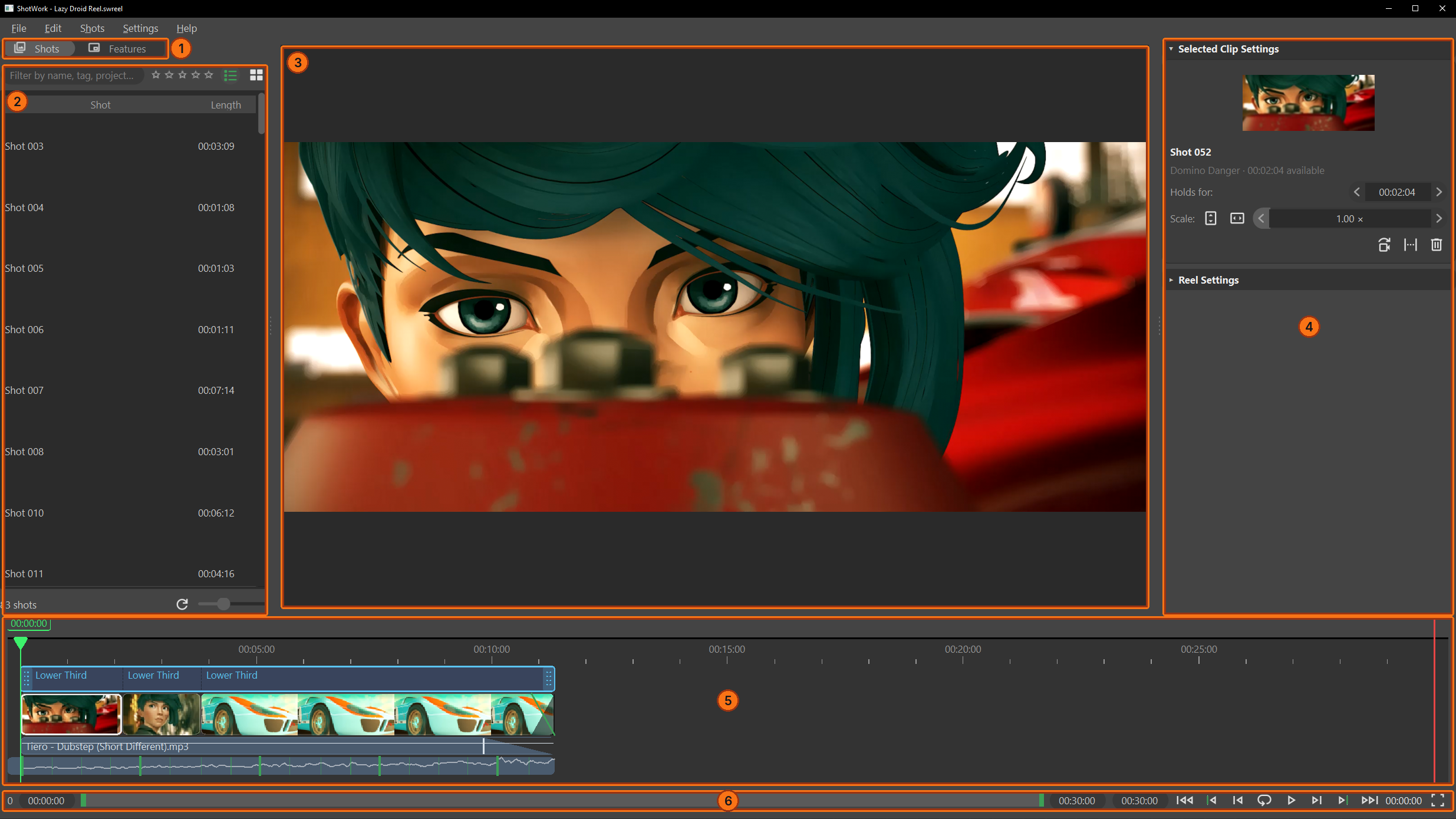
| # | Region | What it holds |
|---|---|---|
| 1 | Shots and Features tabs | Switches the left panel between the shot picker and the features: the tiles you drag onto the reel for a fade, a song, a card or an overlay template. |
| 2 | Shot picker | Every shot in your library, with a filter box that takes the same query language as the shot list's. See Add shots. |
| 3 | Viewer | The reel playing as it will export, overlays and all. See Preview a reel. |
| 4 | Reel settings panel | Selected Clip Settings for whatever you selected, and Reel Settings for the whole reel. See Reel settings. |
| 5 | Reel timeline | The template band on top, the clips in the middle, and the music and beat lanes underneath. See Arrange clips for the clips and The template band for the band. |
| 6 | Transport | The playback range slider with its fields, the nine buttons and the playhead's position: the same row a shot selects tab has. See Play and move around. |
Choose a number in the table, or a badge on the picture, to show that region on its own; choose it again to bring the rest back.
A reel tab and a shot selects tab are two kinds of document, and both can be open at once. See Documents and tabs.
Where to start
- Start a reel, empty or filled from your ratings.
- Add shots from the picker.
- Preview a reel as you go.
- Arrange clips: reorder, trim, ripple, roll, slide, slip and replace.
- Holds and shortening: how long each clip plays, and which part of its shot.
- Set a length budget and edit toward it.
Then the rest:
| To | See |
|---|---|
| Change how times read, pick the frame rate, and see what the reel remembers | Reel settings |
| Frame one clip inside the reel's frame | Clip picture |
| Put music under it and cut to the beat | Music and Beats and downbeats |
| Fade in and out, or dip to black | Fades and Transitions |
| Label every shot with its own details | Overlay templates and Build an overlay template |
| Hold on an image, a color or a title | Cards |
When it is ready, see Exporting, or ask an AI assistant for a first cut from your library.