Music
A reel is scored, not narrated. The shots play without their own sound, and the music is the soundtrack; a clip's own sound is a planned feature, see Clip audio and ducking. ShotWork analyzes each song, draws its beats under the clips, and lets edges snap to them.
Add a song
- Open the Features tab.
- Drag the Music tile onto the reel timeline, anywhere along it. A dimmed lane shows where the song will land.
- In Choose Music, double-click a song, or choose Browse… to pick a file that is not in your music library yet.
The song appears as a bar in the music lane under the clips, the song bar, already selected, and its beats fill in as analysis finishes.
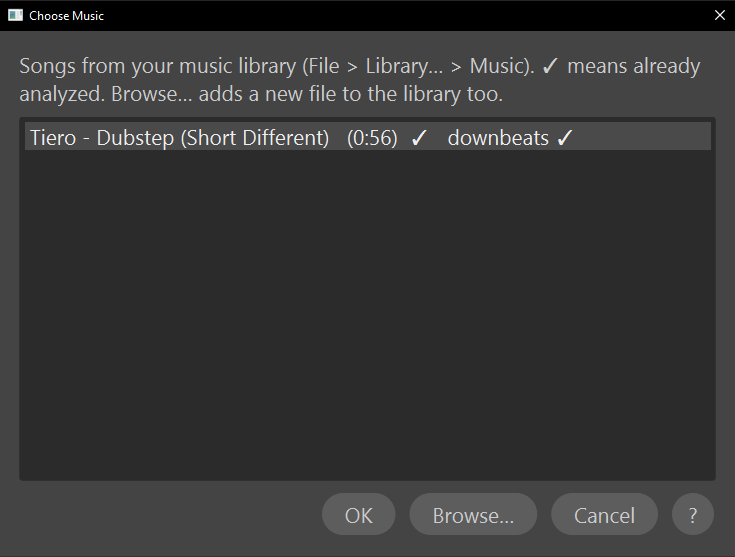
A check mark after a song's length means it is already analyzed, so its beats appear the moment it lands. A song whose file has moved is grayed out, with (missing) after its name. A file chosen with Browse… joins your music library on the way in.
You can also drag a song's row from the Music view of the Library window straight onto the reel timeline, which skips Choose Music.
Several songs
A reel can hold several songs, one after another in the same lane. They never overlap.
- Drag the last song's right end to the left, to where the next song should start.
- Drop the Music tile again, or another song's row from the Library window.
The new song starts where the last one ends and runs to the end of the reel. If the last song still reaches the end of the reel, No Room for Another Song says so rather than shortening it for you.
Because songs cannot overlap, there is no crossfade between them. Fade the first one out and the next one in.
Shape a song on the timeline
Click a song bar to select it. Clicking the empty part of its lane, or the beat lane under it, selects it too.
| Do this | What happens |
|---|---|
| Drag the bar's body | Moves the song along the reel. Its start and end move together. |
| Alt-drag the bar's body | Slips the song under the bar, the way a clip slips: a later or earlier part of it plays, the bar stays put, and the beats move with the song. |
| Drag either end | Sets where on the reel the song starts or stops. The ends snap like a clip edge. |
| Drag the level line inside the bar | Sets the level, with a dB readout while you drag. The top of the bar is +12 dB and the bottom -24 dB; Level in the panel goes further down. |
| Drag a fade handle | Lengthens or shortens that fade. |
| Double-click the bar | Mutes the song, or brings it back. A muted bar dims and reads (disabled). |
| Right-click the bar | Choose a Different Song…, Mute or Unmute, and Remove from Reel. |
Every one of these is a single undo step.
A fade handle only appears once the fade is longer than zero, so start a fade with Fade in or Fade out in the panel, then shape it on the bar.
Let go of the last song's right end at the very end of the reel and it goes back to following the reel's end, so it keeps up as the reel grows.
Song settings
With a song selected, the top of the panel becomes Selected Music Settings.
| Setting | Does |
|---|---|
| Enabled | Mutes the song in preview and export without losing its settings. The same as double-clicking the bar. |
| Song offset | How far into the song playback begins. |
| Starts at | Where on the reel the song begins. There is silence before it. |
| Ends at | Where on the reel the song stops. Reel end follows the reel as it grows. |
| Level | Louder or quieter than the file, from -40 to +12 dB. |
| Fade in and Fade out | Ramps at the song's own start and end on the reel. A new song fades out over 1.5 seconds, because music that stops dead on the last frame sounds cut off. |
Choose… swaps the selected song for another, keeping its place, level and fades; Song offset goes back to zero. The trash button beside it, or Del with the song selected, takes the song off the reel.
Beats, Downbeats, Manual downbeats: every and Curve choose what the beat lane draws, and what edges snap to. See Beats and downbeats.
Your music library
Every song you add is registered in your music library, left where it is on disk; nothing is copied. File › Library… lists them in its Music view, with each song's length, whether it is analyzed, and how many reels use it.
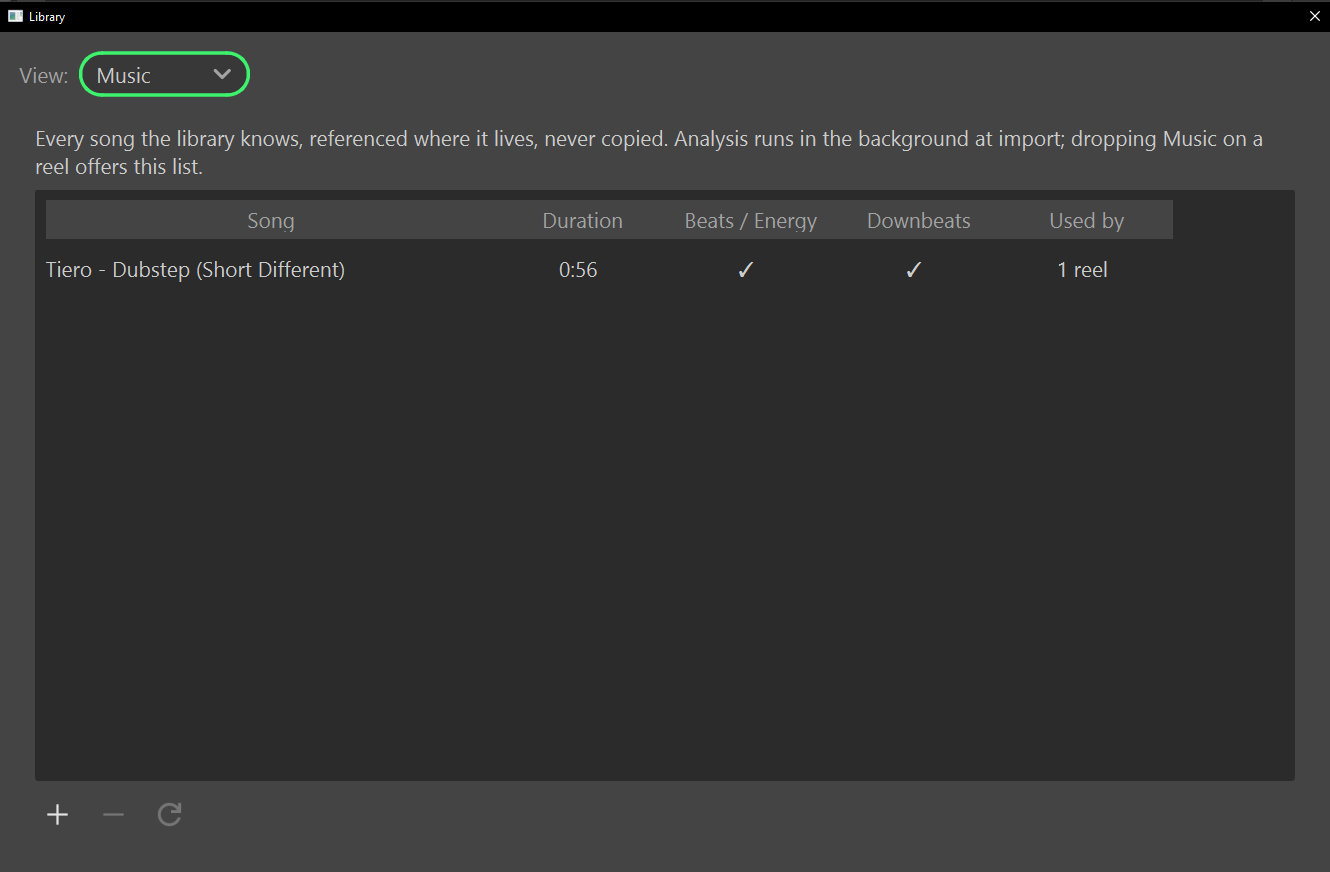
- The + button imports several songs at once and analyzes them in the background, so they are ready before you need them.
- Right-click a song for Reveal in File Browser, Re-analyze, Manual Downbeats… and Remove from Library. Removing a song from the library leaves the file, and every reel already using it, alone.
- A song whose file was replaced since you imported it reads (file changed). Re-analyze it to bring its beats up to date.
What happens
- Preview plays each song at its level, with its fades, only inside its place on the reel. With several songs, ShotWork mixes them into one file first, so the first play after a change can take a moment. Playback stops at the end of the picture, even when the song runs longer.
- Export Video mixes every enabled song at its level and with its fades, and fills the rest with silence to the picture's length. Music never changes how long the reel runs.
- Export Timeline puts every enabled song on one audio track at its place on the reel, but at full level and with no fades: set those again in your editor. Muted songs, and songs whose file is missing, are left out.
Clip audio and ducking
Not built yet
Clip audio and auto-duck are not built.
A clip can keep its own sound under the music. Turn on Clip audio for the clip in its settings and set its level. Duck music then lowers every song by the amount you set wherever a clip's own sound plays, so the lines on an actor reel stay clear. There is one duck control for the whole reel.
Related
- Beats and downbeats for where the beat grid comes from and the optional downbeat engine.
- Snapping for the snapping the grid feeds.
- Fades for fading the picture, which is separate from fading a song.
- Export a reel as video and Export a timeline.
- Cutting faster for habits on the reel timeline.