Hotkeys
Every keyboard binding in ShotWork can be changed. When you finish here, the key you prefer drives the action, and every tooltip that names the key shows your choice. The Hotkeys reference lists every action with its default key.
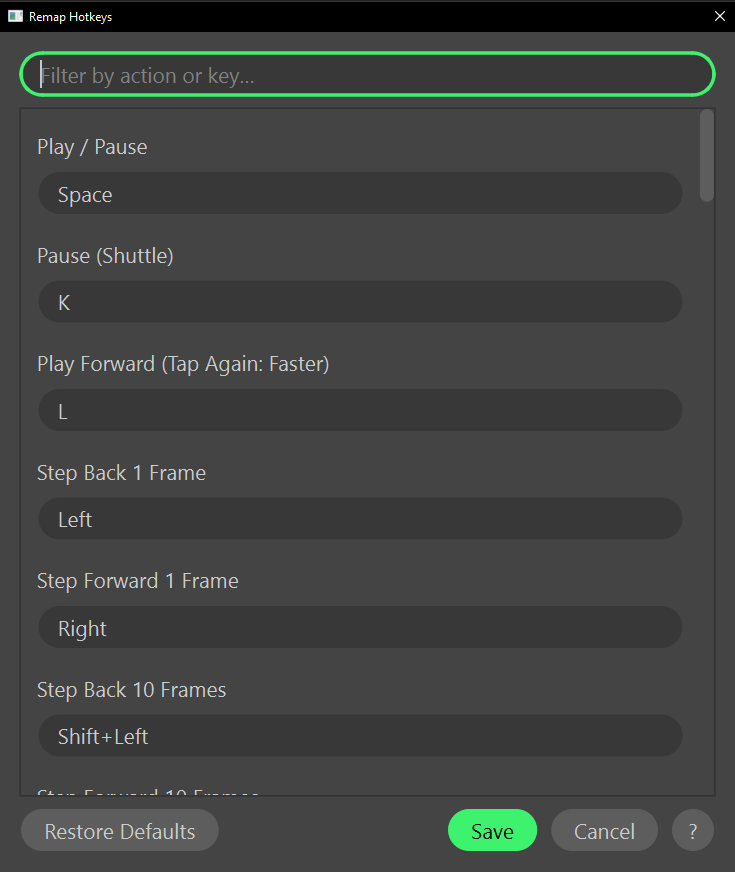
Change a hotkey
- Choose Settings › Remap Hotkeys….
- Find the action. Type in Filter by action or key… to narrow the list
by the action's name, or by a key: typing
ctrl+sfinds whatever is bound to Ctrl+S. - Click the action's key field, and press the new combination.
- Choose Save.
The new binding works at once, with nothing to restart. Filtering never discards an edit: a row the filter hides keeps the change you made to it.
Go back to the defaults
- Choose Restore Defaults. Every key field goes back to its default, but nothing is saved yet.
- Choose Save.
What happens
- Two actions cannot share a key. Save refuses with Duplicate hotkeys, listing each shared key and the actions using it, until you change one of them.
- A key field always holds a key. To free a key, give its action another one, or restore the defaults.
- Some actions start with no key. Sort Shots Chronologically and Import Clips from Folder… wait for you to give them one. J is left unbound: in editors with J, K and L shuttle keys it plays backward, and ShotWork does not.
- Hotkeys work anywhere in the window, not only over the viewer. Typing in a text field is unaffected, because the field takes the letters first.
- A few keys are not in the list, because each belongs to one place. On the reel timeline, Del and Backspace remove the selection, and with a clip selected Up and Down step the selection. In the overlay template editor, the arrow keys nudge an item.
- Only your changes are stored, in
hotkeys.jsonin ShotWork's app data. A default that changes in a later version of ShotWork reaches you, unless you had changed that one.
Related
- Hotkeys for every default binding.
- Mouse and modifiers for what the mouse does.
- Tips and tricks for habits built on the keys.