Export a reel as video
One file, ready to upload: the whole reel with its music, overlay templates, fades and cards rendered in, at the frame size you choose.
Before you start
- Nothing listed under Needs Attention in the reel settings panel. File › Export… is unavailable until the list is empty.
- Every clip's video present. An offline clip blocks export; relink it from its shot selects.
- ffmpeg, which ShotWork offers to fetch if it does not have it yet.
Steps
Warning
Save to keeps its extension when you change Format. ProRes and
DNxHR belong in a .mov file, so change .mp4 to .mov yourself when
you pick one of them.
- On the reel's tab, choose File › Export… (Ctrl+E).
- If the reel holds restricted shots, Restricted clips lists them and asks "Export anyway?", unless the reel was built with Include restricted shots. See Restricted.
- If the reel runs over its Limit to budget, Over budget says how much will be cut from the end, and asks first. See Set a length budget.
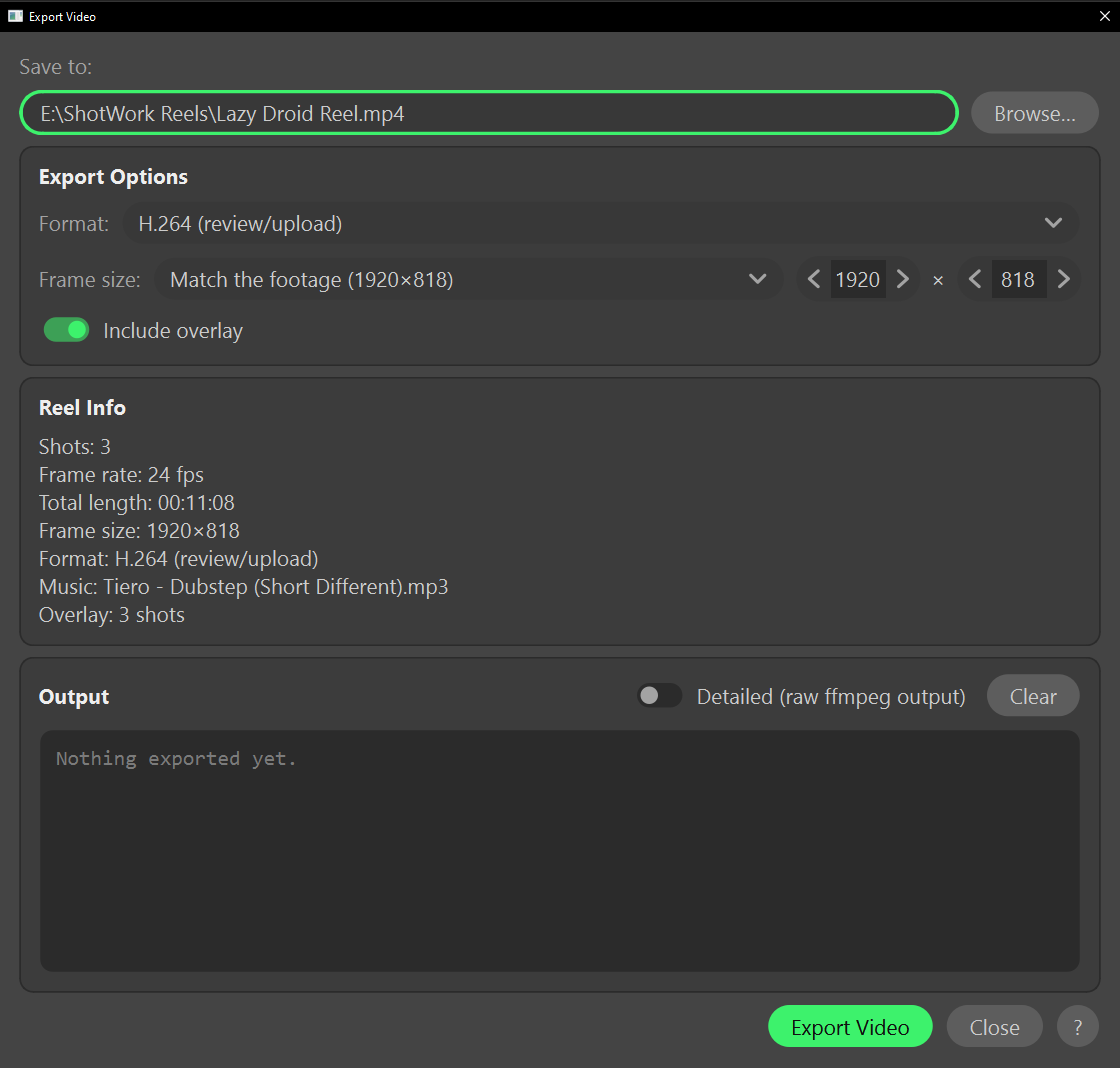
- In Export Video, set Save to, or choose Browse…. It starts as the reel's name in the reel's own folder, or in a ShotWork Reels folder in your home folder for a reel you have not saved.
- Pick a Format: H.264 (review/upload), ProRes 422 HQ (editorial) or DNxHR HQ (editorial). A format your ffmpeg cannot make is unavailable.
- Pick a Frame size: Match the footage, 4K UHD (3840×2160), 1080p (1920×1080), 720p (1280×720), Square (1080×1080) or Vertical (1080×1920), or type a width and height of your own. On the free tier the list stops at 720p; see On the free tier.
- Leave Include overlay on to burn the reel's overlay template in. It appears only when the reel has one, and on the free tier it is always on.
- Read Reel Info, then choose Export Video.
What happens
Reel Info states what is about to render and follows your changes: Shots, Frame rate, Total length, Frame size, Format, Music (the song, or how many songs, and any that are muted) and Overlay (how many shots carry one, or (disabled) when it is off).
Under it, "Some clips can't be used exactly as they are:" lists every clip whose frame rate differs from the reel's, whose frames will be resampled, and every clip whose frame size differs, which will be scaled to fit and padded rather than cropped. Nothing there stops the export.
While it renders:
- A bar counts the frames, and Export Video becomes Cancel. Canceling, or closing the dialog, stops the render and deletes the unfinished file.
- Output logs when the render started, where it is writing and how it finished. Turn on Detailed (raw ffmpeg output) to see every line ffmpeg writes, for tracking down a problem, and Clear to empty the log.
- Exported names the file when it is done, and Could not export shows the end of ffmpeg's log when it fails. The dialog stays open either way, so you can change a setting and render again.
What the render does:
- It always re-encodes, cutting every clip on its own frames.
- Music plays at each song's level with its fades, several songs mixed together. The shots' own sound is not included.
- Overlays and title cards appear as the viewer drew them. An overlay item fades in after its cut and out with its clip's own fade; an item carried unchanged across the cut holds steady instead. See Overlay templates.
- A clip's Scale crops in as it previewed. See Clip picture.
What frame size does to the footage
Match the footage is the frame size most of the reel's clips already have, or 1920×1080. A clip of another size is scaled to fit inside the frame and padded, with black for footage and with the card's own color for image and color cards; nothing is cropped except by a clip's own Scale. A clip at another frame rate is converted to the reel's rate. Odd dimensions are rounded down to even, because H.264's pixel format cannot hold an odd width or height.
On the free tier
Without a license, reel video goes out at up to 1280×720 with Basic Lower Third on every shot: the sizes above 720p are not offered, a typed size stops at the cap, Match the footage is fitted inside it, and Include overlay stays on. A note under the frame size says "Free tier: up to 1280×720, with the built-in mark. A license lifts both." beside an Enter License… button, and a license entered there unlocks the open window at once. See The free tier and your license.
Delivery presets
Not built yet
Delivery presets are not built.
Format offers presets named for where the reel is going, Vimeo, YouTube, ArtStation and Archive, each setting the codec, quality and frame size that destination wants. You pick the destination rather than the codec.
Watermark
Not built yet
Watermark is not built.
Turn on Watermark to place an image over the whole reel, positioned the way a logo is in an overlay template. It pairs with restricted shots: a reel that includes them can go out watermarked rather than being held back.
Several frame shapes from one reel
Not built yet
Exporting several frame shapes at once is not built.
Turn on more than one frame shape, such as 16:9, 9:16 and 1:1, to render each as its own file in one go. Each clip's planned position decides what each shape keeps; see Position and letterbox.
Related
- Music for what the music lane's level line and fades mean to the render.
- Overlay templates for what Include overlay burns in.
- Set a length budget for the Over budget question.
- Export a reel as a timeline when the reel's finish belongs in your editor instead.