Marking shots
Marking is the first half of ShotWork. You open a finished video once, record where each shot worth keeping starts and ends, and describe it while it is in front of you. Nothing renders until you choose to export.
A shot is an in point, an out point, and whatever you say about it. Shots
live in a shot selects file, which points at your video rather than
copying it, so one small .swselects file can cover a whole show. A shot
you have only marked already counts: it shows in your library and can go
straight onto a reel. Exporting shots to disk is for when something outside
ShotWork needs them.
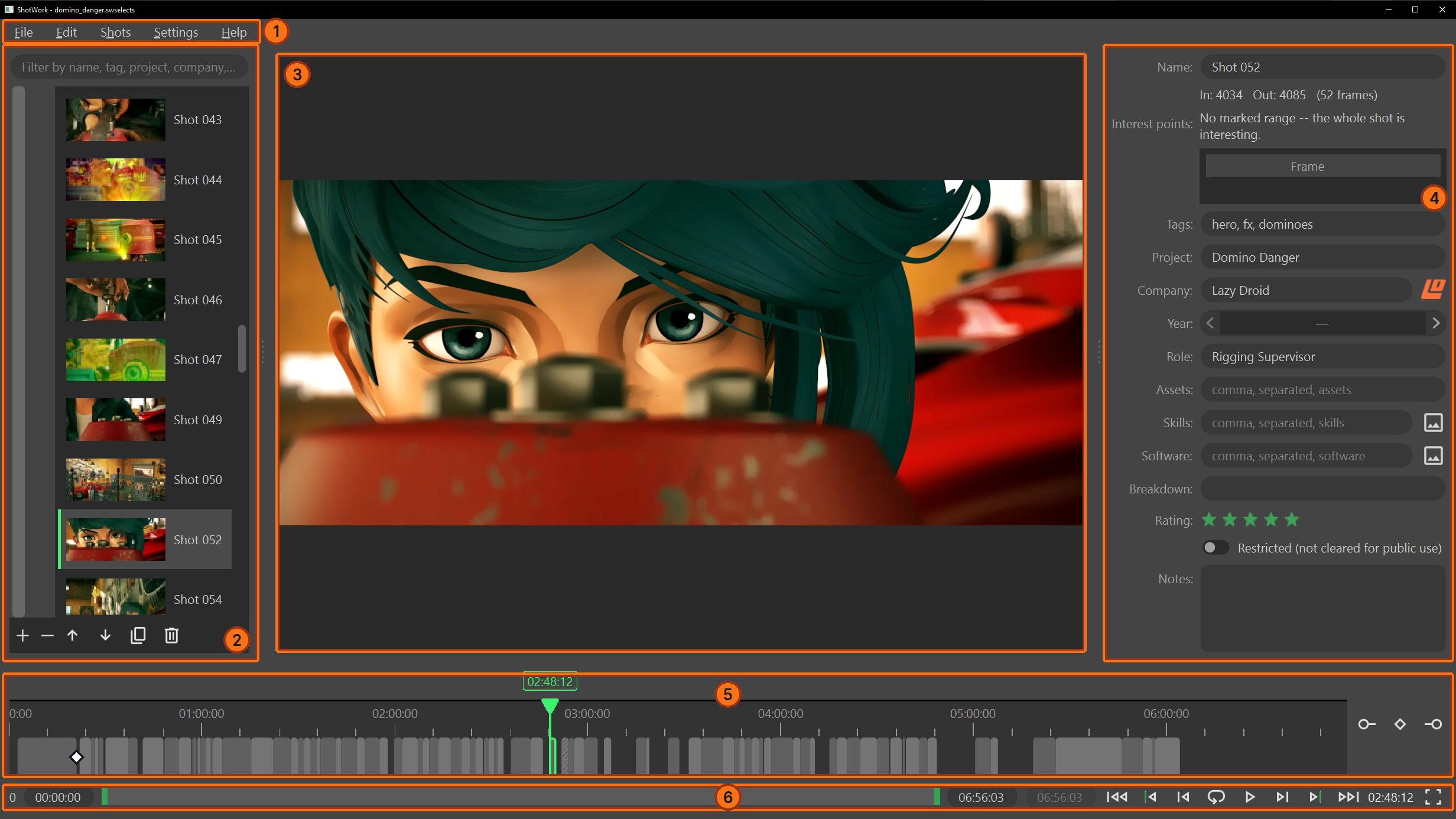
| # | Region | What it holds |
|---|---|---|
| 1 | Menu bar | File, Edit, Shots, Settings and Help. |
| 2 | Shot list | Each video in the file as a header row with its shots under it, a bar per video down the left edge, and a filter box above. |
| 3 | Viewer | The video as it plays. |
| 4 | Detail panel | The selected shot's name, interest points, fields, rating, restricted flag and notes. |
| 5 | Source timeline | The whole video end to end: a band per shot, its interest points and the playhead, with Mark In, Add Interest Point and Mark Out beside it. |
| 6 | Transport | Play, step, jump, loop, and the playback range. |
Choose a number in the table, or a badge on the picture, to show that region on its own; choose it again to bring the rest back.
A reel tab lays out differently; see Building a reel. Tabs, the grips between the panes, and what ShotWork remembers about the window are on Documents and tabs.
Where to start
The rest of this section is the work that surrounds those two:
| To | See |
|---|---|
| Find the frame | Move around a source |
| Let ShotWork propose the shots | Detect shots |
| Bring in shots that are already files | Import clips |
| Say what each shot is | Describe a shot |
| Mark the moments worth keeping | Interest points |
| Split, delete, reorder and filter | Organize shots |
| Understand where the fields come from | Field presets |
| Add, change or remove a field | Edit the fields |
| See everything across your shot selects | The Library window |
When the shots are marked, export them or build a reel from them.