Build an overlay template
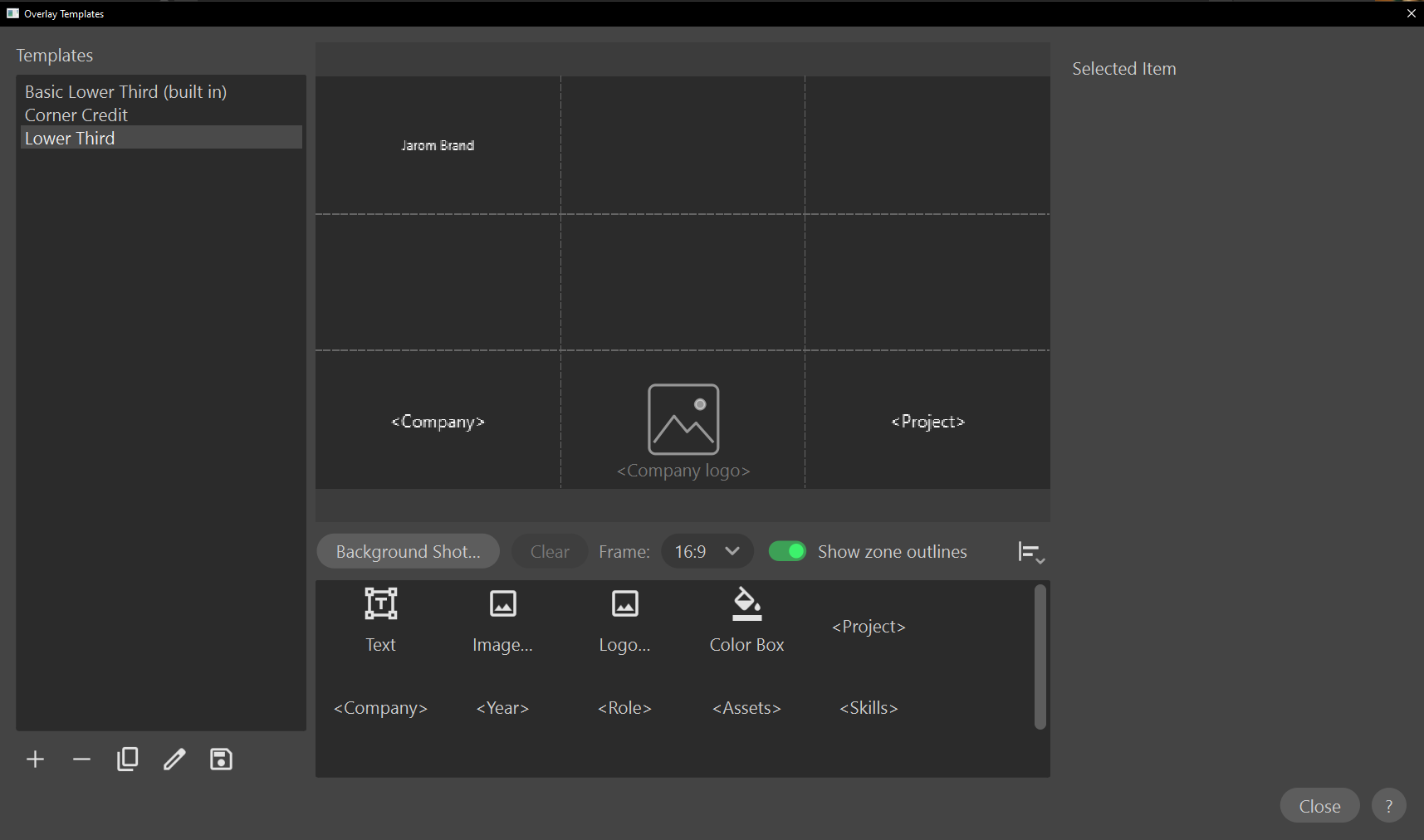
An overlay template is a named layout of text, images, logos and field items. You design it once in the overlay template editor, and any reel can use it: the field items fill in from whichever shot sits under the overlay, so one template labels every clip on a reel with that clip's own project, company and role.
Before you start
- ShotWork comes with one template, listed as Basic Lower Third (built in). It cannot be changed or deleted; Duplicate makes a copy that can. The Lower Third in these pictures is one you would build yourself.
- Building templates needs a license. Without one the editor opens on the built-in template, read-only, with a banner that says so. See The free tier and your license.
- Templates belong to ShotWork, not to a reel or a shot selects file. Every reel can use every template, and editing one changes it everywhere it is in use.
- Background Shot… needs ffmpeg. Without it the button is unavailable, and you design against an empty frame.
Steps
The five buttons under the Templates list are, left to right, New (+), Delete (−), Duplicate (two squares), Rename (the pencil) and Save (the disk). Each says its name when you hover over it.
- Choose File › Overlay Templates….
- Choose New. The canvas clears, and the template is called Untitled Template.
- Choose Rename.
- Type a name. The name is what the Features tab and the template band show.
- Drag a tile from the palette under the canvas onto the frame. While you drag, the item is drawn where it will land.
- Drag the item where you want it. Close to a free zone's anchor it snaps onto the anchor; anywhere else it stays where you drop it.
- With the item selected, scroll over the canvas to size it: text and field items change font size, and pictures change scale.
- Choose Save.
Save never asks for a name, so a template you never renamed saves as Untitled Template.
Duplicate saves a copy of the selected template as <name> copy,
numbered when that name is taken, and opens the copy. It is how to start
from Basic Lower Third.
Tip
To open the editor on a template you already use, right-click its tile on a reel's Features tab, its stretch of the template band, or a title card that uses it.
The palette
Tiles are dragged onto the canvas; clicking one does nothing.
| Tile | Puts on the frame | Its content comes from |
|---|---|---|
| Text | A line you type | The Text box, the same on every shot |
| Image… | A picture | A file you choose in Choose an Image, the same on every shot |
| Logo… | A picture | A logo you choose from your logo pool in Choose a Logo, the same on every shot |
| Color Box | A solid rectangle | Its own color and opacity. Always drawn behind every other item, so text has something readable to sit on |
<Project>, <Company> and the other field tiles |
A line of text, or the value's logo | That field of the overlaid shot, read for each shot |
There is a field tile for every field in any of your field presets, plus
<Notes>, which every shot has. Add a field to a preset and its tile
appears.
- Text and field tiles land where you let go, on the nearest free zone.
- Picture tiles land centered on the nearest zone, and replace any item that zone already holds.
A template holds one item per zone, and there are thirteen zones. When every zone is taken, a text or field drop does nothing.
How a field item fills itself
A field item stores which field to print, never a value. When the overlay is drawn over a clip, ShotWork reads that clip's shot and prints what it finds.
On the canvas there is no shot yet, so a field item draws its own label in
angle brackets: <Role> stands where the role will go, and a field item
set to show its logo draws a placeholder picture captioned
<Company logo>. Load a background shot and they show that shot's real
details instead.
| The shot's field is | The item prints |
|---|---|
| Filled in | The value. A list prints its values separated by commas, or one per line when set to Stacked. |
| Empty | Nothing, and its place in the layout stays empty |
| Not in that shot selects file's fields | Nothing |
| Marked Hide on restricted, on a restricted shot | Nothing, and no logo and no notes either, whatever the template asks for |
Empty is not an error and not a hole in the layout. The item disappears and the rest of the template draws unchanged, which is what makes one template safe to point at a reel of unevenly filled shots. The restricted flag beats the template every time, so a reel of restricted work cannot leak a company's name through an overlay.
Show a field's logo
Any field item can show logos instead of text: a studio's mark for Company, a program's for a software field.
- Drag the field's tile onto the canvas and click the item.
- In Selected Item, set Display to Logo.
The item draws the logo assigned to the shot's value in the Logos view of the Library. A value with no logo draws nothing. A list field draws one logo per value that has one, side by side, or one under another when Layout is Stacked.
To show a studio's name and its logo together, place two items, one set to Text and one to Logo, and position each where you want it.
Moving, sizing and fixing
Click an item to select it: a box draws around what it actually drew, so a selected item is never mistaken for an unselected one. With several selected, the one Selected Item is showing has the solid box and the rest a dashed one.
Selected Item, on the right, shows only the settings that apply to it:
| Setting | For | Does |
|---|---|---|
| Text | Text items | The words. Applies when you press Enter or leave the box. |
| Display | Field items | Text prints the value. Logo shows the value's logo. |
| Layout | Items for a list field | In a row puts values side by side, text separated by commas. Stacked puts one under another. |
| Justify | Text and field items | Which edge holds still as values of different length fill the item in: left, center or right. Stacked values line up on that side too. |
| Font, Size, Color | Text items, and field items showing text | Size is in pixels on a frame 1920 pixels wide, so text keeps its proportion at any output size. |
| Scale | Pictures, and field items showing logos | 1.00 fits each picture inside one grid cell, a third of the frame wide. |
| Logo gap | Field items showing logos | The space between a list's logos, as a fraction of one logo's own size. 0.10 is the default; 0 puts them edge to edge. |
| Width, Height | Color boxes | How wide and tall the box is, both as fractions of the frame's width, so the box keeps its shape whatever shape the video is. Either can go past 1 to cover a tall frame. |
| Opacity | Color boxes | How solid the box is. 1 is opaque; 0.6, the default, lets the footage show through. |
| Number format | Field items on a number field | How much of the number to print: As typed, Whole number, One decimal or Two decimals. A field's value is stored as you typed it; this only changes what the overlay shows. |
| Offset X, Offset Y | Every item | How far the item sits from its zone's anchor, as a fraction of the frame. Positive X is to the right, positive Y is down. |
| Do this | To |
|---|---|
| Drag an item, with the left or middle button | Move it, snapping to free anchors |
| Ctrl or Shift and click an item | Add it to the selection, or take it back out |
| Scroll over the canvas | Size the selected item: text by 2 pixels a notch, pictures by 0.05 |
| Scroll over a color box | Widen it. Hold Ctrl to make it taller instead. |
| Hold Alt and middle-drag sideways | Size the item under the pointer: right grows, left shrinks |
| Arrow keys | Nudge the selected item one pixel |
| Hold Shift with the arrow keys | Nudge it ten pixels |
| Right-click an item | Remove Item |
| Ctrl+Z | Undo |
| Ctrl+Y or Ctrl+Shift+Z | Redo |
Where items overlap, a click picks the smallest one, so a short line of text over a big picture can still be grabbed.
Several items can be selected at once with Ctrl and a click. Dragging any one of them, or nudging with the arrow keys, moves them all together, and Selected Item keeps showing the last one picked.
Undo folds one drag, one run of typing, or one run of changes to a setting into a single step, up to 100 steps. It is cleared when you choose New or open another template. Save, Rename, Delete and loading a background shot are not undo steps.
Tip
An item in the default font takes on whatever Font shows the first time you change its size, scale or offset. Set Font on purpose before fine-tuning the rest.
Line items up
Align, at the right of the bar under the canvas, lines items up on each other instead of by eye.
| Button | Does |
|---|---|
| The three Align horizontally buttons | Line up their left edges, their centers, or their right edges |
| The three Align vertically buttons | Line up their top edges, their centers, or their bottom edges |
| The two distribute buttons | Space three or more items evenly. The two outer ones stay where they are. |
Align to says what the others line up on: Selection bounds, the box around everything selected, or First selected or Last selected, to line up on one particular item.
With only one item selected, it lines up on its own zone's anchor instead, so the first Align horizontally button, left, puts its left edge on the anchor dot.
Alignment works on what each item actually draws, not on the anchor it hangs from, so a line of text and a logo line up by their visible edges. Each click is one undo step.
The canvas
Frame sets the shape the canvas draws: 16:9 to start, with 9:16, 1:1, 2.39:1 and 4:5 for reels delivered another way. It is remembered between sessions.
Set it to the shape your reel exports at, not to the shape of any one clip. A reel puts every clip into a single frame, so on a 16:9 reel a vertical phone clip gets black down both sides and your overlay stays exactly where you placed it. Designing on a vertical canvas because the background shot happened to be vertical gives a template that matches neither the reel's viewport nor the export.
Show zone outlines, on by default, draws the thirds grid on the canvas. The zone anchors themselves appear only while you drag. Neither is ever part of the overlay.
Design against real footage
Background Shot… picks a shot from your library and puts one real frame
of it behind the canvas: the middle of the shot's interest range, or the
middle of the shot. The field items fill in from that shot at the same
time, so a lower third is checked against real text lengths and a real busy
background instead of <Company> on gray.
The background is a single still frame, not a clip you can play, and it is not saved with the template. It is fitted inside the Frame shape above, with black where it does not reach, which is what the render does to it.
Editing that shot's metadata while the editor is open updates the canvas straight away; you do not need to close and reopen it.
A field that is empty on that shot draws nothing, so its item cannot be clicked until you Clear the background or pick a different shot. On a restricted background shot, the hidden fields, their logos and the notes disappear the same way.
Clear takes the frame away and puts the placeholders back.
Work alongside your reel
The editor is its own window, not a door you have to close. Leave it open on a second monitor and edit a template while the reel that uses it stays visible.
Save is what updates your reels. Until you save, every reel goes on showing the template as it was last saved, exactly as it does when the editor is not open. Save, and open reels pick up the change straight away: the band on the timeline, the tile on the Features tab, and the preview.
Only one editor opens. Choosing File › Overlay Templates… again, or Edit “Lower Third”… from a band's right-click menu, with the template's name, brings the window you already have to the front. If you ask for a different template that way and have unsaved work, it asks first.
Close the editor
Close or Esc asks before discarding unsaved changes, and so do New and picking another template from the list. Enter never closes the editor: it applies the box you are typing in and moves to the next one.
Closing ShotWork with unsaved template work asks too, rather than dropping it.
What happens
- Save writes the template to the
overlay_templatesfolder of ShotWork's app data, one file per template, and it appears as a tile on every reel's Features tab. - The file is named after the template, keeping only letters, digits, spaces, underscores and hyphens. The Templates list shows those file names, so Lower Third (v2) is listed as Lower Third v2. Two names that clean up to the same file name share one file, and saving the second overwrites the first.
- Rename saves under the new name right away and rewrites every reel in your library that used the old name, open reels included, so a rename never orphans an overlay. It cannot be undone.
- Delete asks first, then removes the template. Reels that used it keep its name and draw no overlay for it.
- Duplicate writes the copy to the same folder as a template of its own. The original is untouched.
- Basic Lower Third lives inside ShotWork, not in that folder, so it is the same on every computer. A template you name the same is refused: Could not save template says the name belongs to the built-in one.
- Pictures are linked, not copied. Image… and Logo… items point at their files where they are, so moving or deleting a file makes the item draw nothing. A template file copied to another computer keeps its text and field items, but its pictures have to be chosen again there.
- A template saved by a newer ShotWork will not open. Could not open template says it needs a newer build.
Where the numbers live
Positions are resolution independent. A template records the zone an item is anchored to and an offset from that anchor as a fraction of the frame's width and height. The thirteen anchors are the centers of the nine rule-of-thirds cells and the four inner intersections. Font sizes are pixels on a frame 1920 pixels wide and scale with the output width, and a picture's natural size is one third of the frame's width times its scale. The canvas, the reel's viewer and the export all draw through the same renderer, so what you design is what gets composited, and text that runs past the frame's edge is cut off in all three.
Related
- Overlay templates to put a template on a reel and override it for one shot.
- Describe a shot for the fields the field items print.
- Field presets for which fields a restricted shot hides.
- Cards for a template shown as a clip of its own.