Import clips
If your shots are already separate files, rendered out of another application or exported by ShotWork, you do not need to mark them. Import them and each file becomes a shot spanning its whole length.
Steps
- Choose File › Import Clips… (Ctrl+I) and select the files, or File › Import Clips from Folder… and select a folder. The + button under the shot list's video bars does the same as Import Clips….
- Wait while Import Clips reads each file. It names each one as it goes.
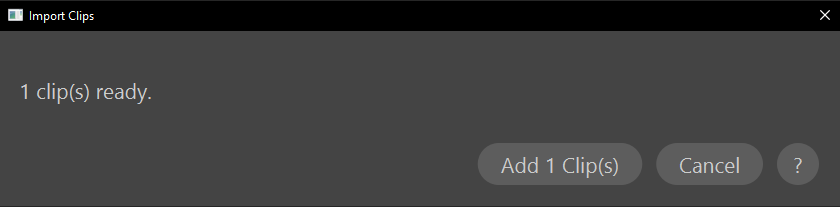
- Read the summary, such as "12 clip(s) ready; 12 with metadata restored; 1 already in these shot selects." and the list of files under it.
- Choose Add 12 Clip(s), where the number is how many are ready.
A folder is searched, including the folders inside it, for AVI, M4V, MKV, MOV, MP4, MXF and WebM files, and anything else is left alone. If no video files turn up, Nothing to import says so. Import works on empty shot selects with no video open.
What happens
Each clip becomes a source with one shot covering all of it, and the whole import is one undo step. ShotWork makes the thumbnails, then loads the first clip and selects its shot. From there each shot behaves like anything else you marked: rate it, tag it, put it on a reel.
The files stay where they are. Nothing is copied or moved.
- A clip ShotWork exported comes back with its details, because the export wrote a metadata file beside it: name, tags, every field, rating, the restricted flag, notes, and interest points lined up with the clip's own frames. The summary counts these as "with metadata restored". A damaged metadata file is ignored rather than stopping the import.
- Any other clip is named after its file, with underscores turned into spaces. Hyphens are kept, because they often mean something.
The list under the summary names each file with something to report:
- A file that could not be read as video is marked with a cross and the reason. The summary counts these as "unreadable".
- "already in these shot selects": a clip this file already has, matched by its content rather than its name, so a renamed copy still counts. Delete every shot from a clip and it can be imported again.
- "variable frame rate, frame numbers may be unreliable": the clip is added, but a variable rate has no single answer to "which frame is this", which is the guarantee the rest of ShotWork depends on.
With nothing usable, Cancel is the only button.
Import a Zerply download
Zerply, the portfolio site, announced it is closing, and the clips and descriptions you kept there are worth bringing home. Download your data from Zerply, extract the zip, and choose Import Clips from Folder… on the extracted folder. ShotWork recognizes it by its data file and names each clip from it: the title becomes the shot's name, the role goes into Role, the studio into Company, and the description into Breakdown. Nothing new appears in the menus: it is this same import, reading what it has been given.
The summary says how many clips were named from the download, and which entries had no file to import, such as works that were Vimeo or YouTube links. Shows and years are not filled in, because the download does not tie them to individual works. Nothing else in the download is read: the messages, contacts and attachments in it stay private. A download with different contents than expected is imported like any other folder, with the files named after themselves.
Related
- Open a video, for the other direction: one long source, many shots.
- Export shots, for the metadata files that bring details back.
- Supported media, for every file type ShotWork reads.